Graphical Basics
Jed Rembold
September 26, 2025
Announcements
- Be working on Wordle! Remember a good goal was to try to have
Milestone 3 done by the end of today
- On every project, I highly suggest you upload what you have done to GitHub after each milestone!
- My availability this afternoon is a bit variable, but if the door is open you are welcome to pop in.
- Speaking of exams, Midterm 1 is a week from today! On everything up
through Wordle (no graphics)
- Review materials going out today
- List of learning objectives
- 2 sample exams with solutions
- Review materials going out today
- Polling: polling.jedrembold.prof
Review Question
When the final line of the code to the right is run, what type of
variable is x?
integerfloatstring- None of the above
def func(A):
    m = 2 * A
    n = m + m + m
    print(n)

y = input('Enter an integer between 1 and 100: ')
x = func(y)
print(type(x))
The Big Picture
The Pieces
- At its simplest then, we have two main parts:
- The window (or felt-board/cork-board)
- Created with the
GWindowfunction - Takes two arguments: a width and a height in pixels
- Created with the
- The contents
- A wide assortment of shapes that can be added to the scene
- Control over where they are placed, how large they are, what color they are, etc
- The window (or felt-board/cork-board)
Blue Rectangle!
from pgl import GWindow, GRect

GW_WIDTH = 500
GW_HEIGHT = 200

gw = GWindow(GW_WIDTH, GW_HEIGHT)
rect = GRect(150, 50 ,200, 100)
rect.set_color("Blue")
rect.set_filled(True)
gw.add(rect)
The Coordinate System
- Positions and distances on the screen are measured in terms of pixels
- The location of the origin and orientation of the y-axis are
different from math!
- Origin is in the upper left instead of lower left
- Y-values increase as you move downwards
Other Simple Objects
Functions to create simple geometric objects:
- Rectangles!
GRect( |||x|||, |||y|||, |||width|||, |||height||| )- Creates a rectangle whose upper left corner is at (x,y) of the specified size
- Circles/Ovals!
GOval( |||x|||, |||y|||, |||width|||, |||height||| )- Creates an oval that fits inside the rectangle with the same dimensions
- Lines!
GLine( |||x₁|||, |||y₁|||, |||x₂|||, |||y₂||| )- Creates a line extending from (x₁,y₁) to (x₂,y₂)
Manipulating Windows
Interacting with the GWindow
We’ve already shown creation:
gw = GWindow(|||width|||, |||height|||)You have several more operations that you can apply to the
GWindowobject:
| Method | Description |
|---|---|
|||gw|||.add(|||object|||) |
Adds an object to the window |
|||gw|||.add(|||object|||, |||x|||, |||y|||) |
Adds an object to the window after moving it to (x,y) |
|||gw|||.remove(|||object|||) |
Removes an object from the window |
|||gw|||.get_width() |
Returns the width of the graphics window in pixels |
|||gw|||.get_height() |
Returns the height of the graphics window in pixels |
Manipulating Objects
The GObject Hierarchy
- The types of graphical objects form a hierarchy:
- The
GObjecttype represents the collection of all graphical objects - The
GFillableObjecttype represents those that have a fillable interior
Interacting with GObjects
- The following operations apply to all GObjects, where
objectis the name of any specific instance.
| Method | Description |
|---|---|
|||object|||.get_x() |
Returns the x coordinate of this object |
|||object|||.get_y() |
Returns the y coordinate of this object |
|||object|||.get_width() |
Returns the width of this object |
|||object|||.get_height() |
Returns the height of this object |
|||object|||.set_color(|||color|||) |
Sets the color of the object to the specified color |
- All coordinates and distances are measured in pixels
Interacting with GFillableObjects
- Fillable GObjects have a smaller subset of commands that also apply to them.
- Initially the only fillable objects available to you are rectangles and ovals
| Method | Description |
|---|---|
|||object|||.set_filled(|||bool|||) |
Sets the fill state of the object |
|||object|||.set_fill_color(|||color|||) |
Sets the color to be used to fill the interior, otherwise same as the outer line |
|||object|||.get_fill_color() |
Gets the current color used to display the object interior |
|||object|||.is_filled() |
Returns True or False depending on whether the object is currently filled |
Smile!
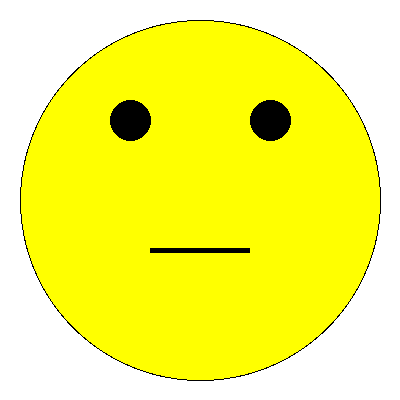
gw = GWindow(400, 400)

head = GOval(20, 20, 360, 360)
head.set_fill_color("yellow")
head.set_filled(True)
gw.add(head)

reye = GOval(110, 100, 40, 40)
reye.set_filled(True)
gw.add(reye)

leye = GOval(250, 100, 40, 40)
leye.set_filled(True)
gw.add(leye)

mouth = GLine(150, 250, 250, 250)
mouth.set_line_width(5)
gw.add(mouth)
Understanding Check
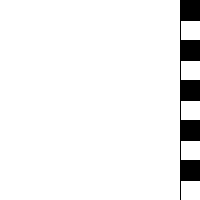
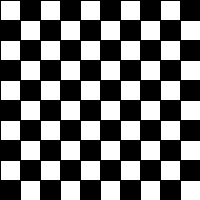
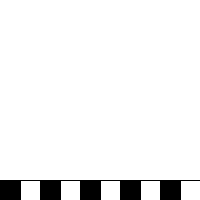
Which of the below images would be produced by the following code?
gw = GWindow(200,200)
for c in range(0,10):
    for r in range(0,10):
        rect = GRect(20*c,20*r,20,20)
        if (r+c) % 2 != 0:
            rect.set_filled(True)
    gw.add(rect)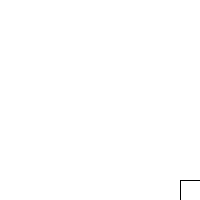
Textual Objects
Label It!
Sometimes you need to add some text to the window
Can display any string using
GLabelusing the following format:msg = GLabel(|||string to add|||, |||x location|||, |||y location|||)Here
|||string to add|||is the text you want to display, and|||x location|||and|||y location|||are the (x,y) coordinates of where you want to place the origin of the label.
Label Geometry
- The
GLabelclass relies on some geometrical concepts that are derived from classical typesetting- The baseline is the imaginary line on which the characters rest
- The origin is the point on the baseline at which the text begins
- The width is the horizontal distance from the origin to the end of the text
- The height of the font is the distance between adjacent baselines
- The ascent is the distance the characters rise above the baseline
- The descent is the distance the characters drop below the baseline
Interacting with Labels
- A
GLabelhas several special methods that you can use to interact with itYou can use:
get_width(),get_height(),get_ascent(), andget_descent()methods to obtain the geometric propertiesYou can set a special font for the label using
labelname.set_font(font)Where
fontis a string comprised of the following elements:- The font style, which is usually blank or
italic - The font weight, which is usually blank or
bold - The font size, which is a number followed by the units
(typically
pt,px, orem) - The font family, which is the name of the font. Because what fonts are available can differ from machine to machine, the family is usually a sequence of fonts separated by commas
- The font family sequence usually ends with a standard family
(
serif,sans-serif, ormonospace) to ensure that the label can display
- The font style, which is usually blank or
Label Example
gw = GWindow(500, 200)
msg = GLabel("hello world!", 50, 100)
msg.set_font("italic bold 80px 'times new roman'")
gw.add(msg)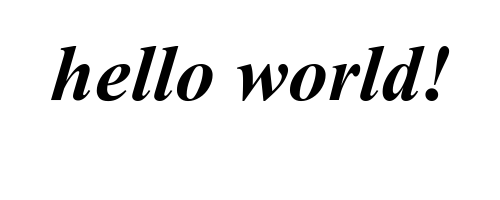
Centering a GLabel
- Frequently useful to center within the window or some shape
- To center properly, you need to know the label dimensions, but you can’t determine the dimensions until after you’ve created the label!
- The main idea then is to:
- Create a
GLabelwithout setting its location - Call the
.set_font()method to set the desired font (which could change the size) - Determine the horizontal position of the origin by subtracting half the width from the desired location x
- Determine the vertical position of the baseline by adding half the ascent to the desired location y
- Add the
GLabelat the newly calculated position
- Create a
Centering Example
gw = GWindow(500, 200)
msg = GLabel("hello world!")
msg.set_font("italic bold 20px 'times new roman'")
x = gw.get_width()  / 2 - msg.get_width()  / 2
y = gw.get_height() / 2 + msg.get_ascent() / 2
gw.add(msg, x, y)