Getting Animated
Jed Rembold
October 8, 2025
Announcements
- Midterm 1 feedback released on Canvas
- Ignore the out of 50 points, it was out of 46
- 1 raw point added to everyone’s score for curving
- I am working on grade reports and they should come out tonight
- Problem Set 4 released and due on Monday!
- No Techbytes tomorrow
- No class Friday! Rest up!
- Polling: polling.jedrembold.prof
Midterm 1 Debrief
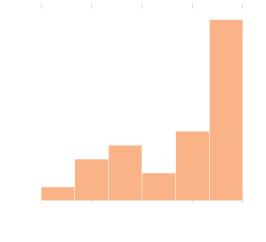
- 1 raw point was added to everyone’s score
- Final breakdown:
- Average: 76.7%
- Median: 84.8%
- St Dev: 23.6%
Review Question!
When the function rev_q is called, what
happens when the mouse is clicked in the window?
- The square shrinks
- The square gets filled
- The square shrinks and then gets filled
- The square gets filled and then shrinks
def rev_q():
    def act_A(e):
        sq.set_filled(True)
    def act_B(e):
        sq.set_size(
            sq.get_width() - 10,
            sq.get_height() - 10
        )
    gw = GWindow(500, 500)
    sq = GRect(200, 200, 100, 100)
    sq.set_color("blue")
    gw.add(sq)
    gw.add_event_listener("click", act_A)
    gw.add_event_listener("mousedown", act_B)
An Interactive Example
Line Drawing
- Say we wanted to write a simple program that allows the user to draw lines by clicking and dragging the mouse
- Using two event listeners would be useful:
- “mousedown” could start drawing a zero-length line at the current mouse position (and add it to the window)
- “drag” could update the end-point of that line
- The strategy would allow the user to have visual
feedback as they drag around, helping them to position the line
- Since the line stretches and contracts as you move the cursor around, the technique is commonly called rubber-banding
Attempt #1
from pgl import GWindow, GLine

WIDTH = 500
HEIGHT = 500

def draw_lines():
    def mousedown_event(e):
        x = e.get_x()
        y = e.get_y()
        line = GLine(x,y,x,y)
        gw.add(line)

    def drag_action(e):
        line.set_end_point(e.get_x(), e.get_y())

    gw = GWindow(WIDTH, HEIGHT)
    line = None
    gw.add_event_listener("mousedown", mousedown_event)
    gw.add_event_listener("drag", drag_action)

if __name__ == '__main__':
    draw_lines()
What Happened?
- Remember that if you define a variable in a function, that variable
is assumed to be local!
- Keeps you from accidentally overwriting variables you may not have meant to
- It works against us here, since we WANT to override the original value
- We can’t pass in the info as a parameter, since it is not part of the event information
- Python does have a
nonlocalkeyword, which allows you to state that a specific variable is not local, but it tends to just confuse students
In the Window
- A common tactic is to store all variables that need to be shared between two or more functions in a state object
- A state object is just a single object which serves as a storage space for a collection of values
- The object is created in such a location as to ensure it is in the closure of any functions that need to access its contents
- We will most often encounter this issue with graphics applications,
where we actually already have an object that could serve as a state
object
- The
GWindowobject (mostly commonly namedgw)!
- The
Storage and Retrieval
- Do you want to store a value in your state object?
- We can store it as an attribute to the
gwobject - Requires specifying the object name, followed by a dot and then your desired attribute name:
gw.|||my_attribute_name||| = |||some_cool_value||| - We can store it as an attribute to the
- Do you want to retrieve a value from your state object?
Just refer to the object and attribute name:
print(gw.|||my_attribute_name|||)
Fixed Line-Drawing
from pgl import GWindow, GLine

WIDTH = 500
HEIGHT = 500

def draw_lines():
    def mousedown_event(e):
        x = e.get_x()
        y = e.get_y()
        gw.line = GLine(x,y,x,y)
        gw.add(gw.line)

    def drag_action(e):
        gw.line.set_end_point(e.get_x(), e.get_y())

    gw = GWindow(WIDTH, HEIGHT)
    gw.line = None
    gw.add_event_listener("mousedown", mousedown_event)
    gw.add_event_listener("drag", drag_action)

if __name__ == '__main__':
    draw_lines()
A Matter of Timing
Timer Events
- Previously we looked at how to our programs could react to mouse events
- Can also listen for timer events, which occur after a specific time interval
- You specify the listener for a timer event in the form of a callback function that is invoked at the end of the time interval
- Can add animation to our graphics by creating a timer whose callback
makes small updates to the graphical objects in the window
- If the time interval is short enough (usually sub 30 milliseconds), the animations will appear smooth to the human eye
Timer Types
- PGL supports two kinds of timers:
- A one-shot timer invokes its callback only
once after a specified delay
Created with
gw.set_timeout(|||function|||, |||delay|||)
- An interval timer invokes its callback function
repeatedly at regular intervals
Created with
gw.set_interval(|||function|||, |||delay|||)
- In both,
|||function|||is the callback function and|||delay|||is the time interval in milliseconds
- A one-shot timer invokes its callback only
once after a specified delay
- Both methods return a
GTimerobject that identifies the timer, and can be stopped by invoking the.stop()method on that timer
Moving Square
def moving_square():
    def step():
        square.move(dx, dy)
        if square.get_x() > 500:
            timer.stop()

    gw = GWindow(500, 200)
    dx = 1
    dy = 0
    square = create_filled_rect(12, 100, 24, 24, "red")
    gw.add(square)
    timer = gw.set_interval(step, 20)
Growing Circles
Waiting vs Events
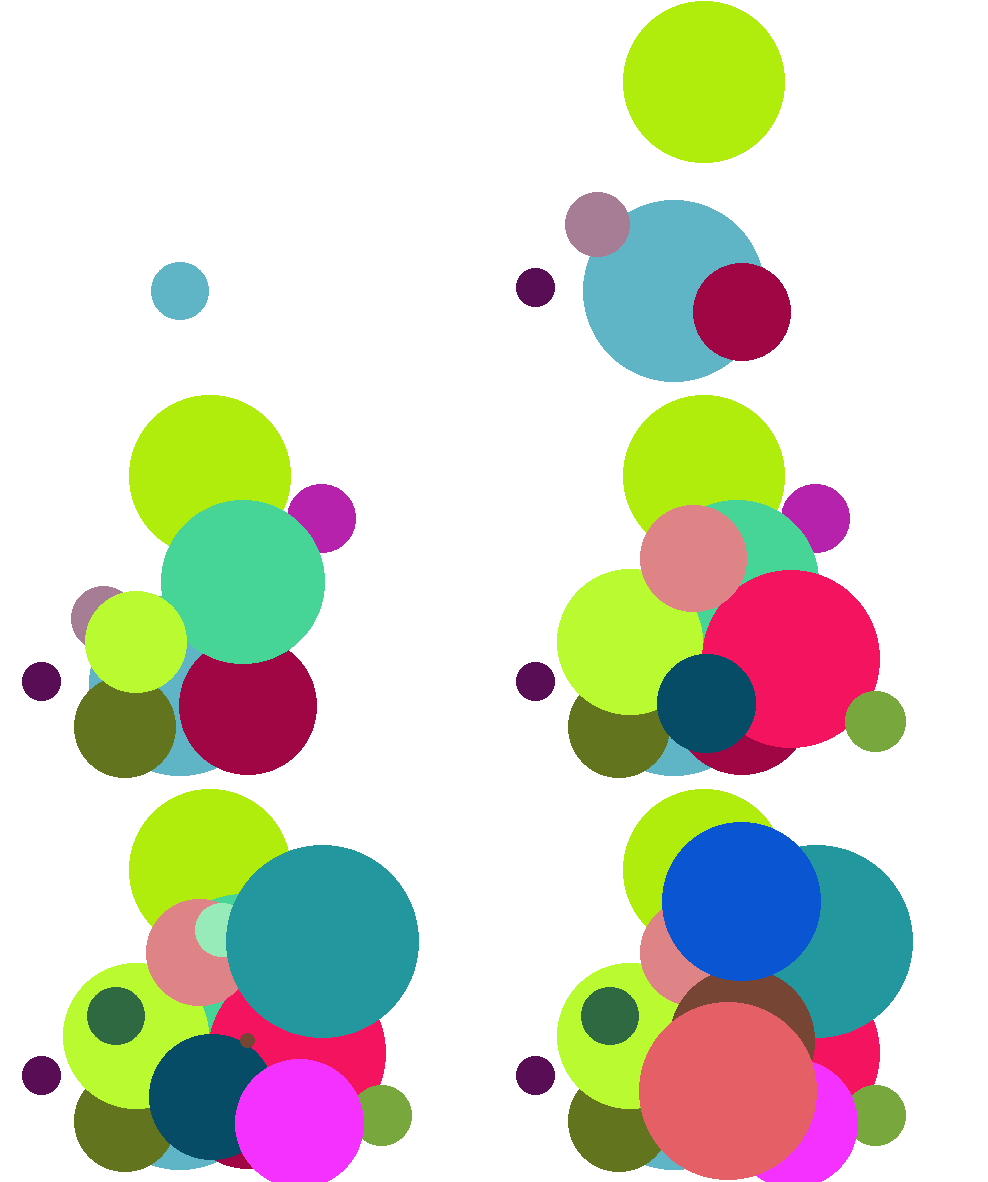
Many would probably try to approach this doing something like as follows:
def growing_circles():
  gw = GWindow(WIDTH, HEIGHT)
  for i in range(NUM_CIRCLES):
      |||Create a new circle|||
      |||Animate the circle to grow it|||
      |||Wait for the animation to complete|||
The problem here is that there is no clear way to “wait” for an animation to complete
- Code you write runs basically instantly or when run by a callback
Instead, we need an event callback that takes care of both circle creation (when needed) and growing animations
Using Events Wisely
Need to keep track of what the program should be doing, and then have the timer callback function handle whatever is needed
Conceptually, for these circles, might look more like this:
def step():
    if |||there is a circle needing growing|||
        |||then increase its size|||
    elif |||a new circle needs to be created|||
        |||then create one|||
    else:
        |||stop the madness by stopping the timer!|||
Making those circles grow!
from pgl import GWindow, GOval
import random

GWIDTH = 500
GHEIGHT = 400
N_CIRCLES = 20
MIN_RADIUS = 15
MAX_RADIUS = 100
DELTA_TIME = 10
DELTA_SIZE = 1

def random_color():
    color = "#"
    for i in range(6):
        color += random.choice("0123456789ABCDEF")
    return color

def create_filled_circle(x, y, r, color="black"):
    circ = Goval(x-r, y-r, 2*r, 2*r)
    circ.set_filled(True)
    circ.set_color(color)
    return circ

def growing_circles():
    def start_new_circle():
        r = random.uniform(MIN_RADIUS, MAX_RADIUS)
        x = random.uniform(r, GWIDTH - r)
        y = random.uniform(r, GHEIGHT - r)
        gw.circle = create_filled_circle(
                            x, y,
                            0, random_color()
                        )
        gw.desired_size = 2 * r
        gw.current_size = 0
        gw.circles_created += 1
        return gw.circle

    def step():
        # Grow a circle if needed
        if gw.current_size < gw.desired_size:
            gw.current_size += DELTA_SIZE
            x = gw.circle.get_x() - DELTA_SIZE / 2
            y = gw.circle.get_y() - DELTA_SIZE / 2
            gw.circle.set_bounds(
                            x, y,
                            gw.current_size,
                            gw.current_size
                        )
        # or add a circle if you can
        elif gw.circles_created < N_CIRCLES:
            gw.add(start_new_circle())
        # or stop
        else:
            timer.stop()

    gw = GWindow(GWIDTH, GHEIGHT)
    gw.circles_created = 0
    gw.current_size = 0
    gw.desired_size = 0
    timer = gw.set_interval(step, DELTA_TIME)
Simulation
- Our technique of piecing together many small movements to resemble motion is not limited to just making pretty animations!
- Physicists use similar techniques to break complex problems into
simple pieces
- “In this small-time interval, the motion is simple”
- Chain together many time intervals to construct the full motion
- There are many areas where this is the only way to solve a problem, as we can not write down equations to express the result otherwise!
The Two Body Problem
from pgl import GWindow, GOval, GLine
from pgl_tools import create_filled_circle

def two_body():
    def step():
        # Compute forces and accelerations
        dx = planet1.get_x() - planet2.get_x()
        dy = planet1.get_y() - planet2.get_y()
        r3 = (dx ** 2 + dy ** 2) ** (3 / 2)
        ax = 1000 / r3 * dx
        ay = 1000 / r3 * dy

        # Update velocities
        gw.vx1 += -ax
        gw.vy1 += -ay
        gw.vx2 += ax
        gw.vy2 += ay

        # Augment history paths
        path1 = GLine(
            planet1.get_x() + 10,
            planet1.get_y() + 10,
            planet1.get_x() + 10 + gw.vx1,
            planet1.get_y() + 10 + gw.vy1,
        )
        path1.set_color("red")
        path1.set_line_width(3)

        path2 = GLine(
            planet2.get_x() + 10,
            planet2.get_y() + 10,
            planet2.get_x() + 10 + gw.vx2,
            planet2.get_y() + 10 + gw.vy2,
        )
        path2.set_color("cyan")
        path2.set_line_width(3)

        # Move planets
        planet1.move(gw.vx1, gw.vy1)
        planet2.move(gw.vx2, gw.vy2)

        gw.add(path1)
        gw.add(path2)

    gw = GWindow(600, 600)
    # Defining state variables
    gw.vx1, gw.vy1 = 0, 1
    gw.vx2, gw.vy2 = 0, -1

    planet1 = create_filled_circle(200, 200, 10, "red")
    planet2 = create_filled_circle(400, 200, 10, "cyan")

    gw.add(planet1)
    gw.add(planet2)

    gw.set_interval(step, 30)

if __name__ == '__main__':
    two_body()