Complex Shapes
Jed Rembold
October 13, 2025
Announcements
- PS4 due tonight!
- Project 1 feedback should have or is coming your way today
- Project 2: Breakout is due next Monday!
- Guide out now, introducing it later in class
- Grade Report is actually coming!
- Polling: polling.jedrembold.prof
Review Question!
When the function to the right is run, what does the screen look like just after 1 second has passed?
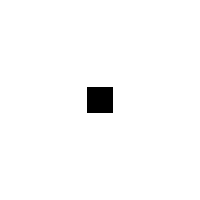
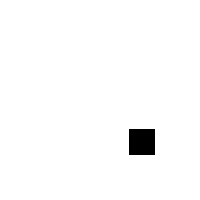
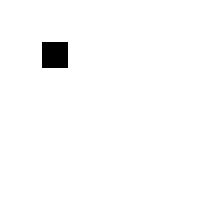
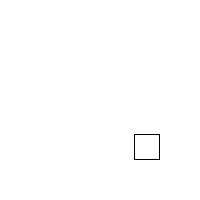
def rev_q():
    def step():
        rect.move(1, 1)

    def once():
        rect.set_filled(True)

    gw = GWindow(200, 200)
    rect = GRect(0, 0, 25, 25)
    gw.add(rect)
    gw.set_interval(step, 20)
    gw.set_timeout(once, 1000)
Stepping Up
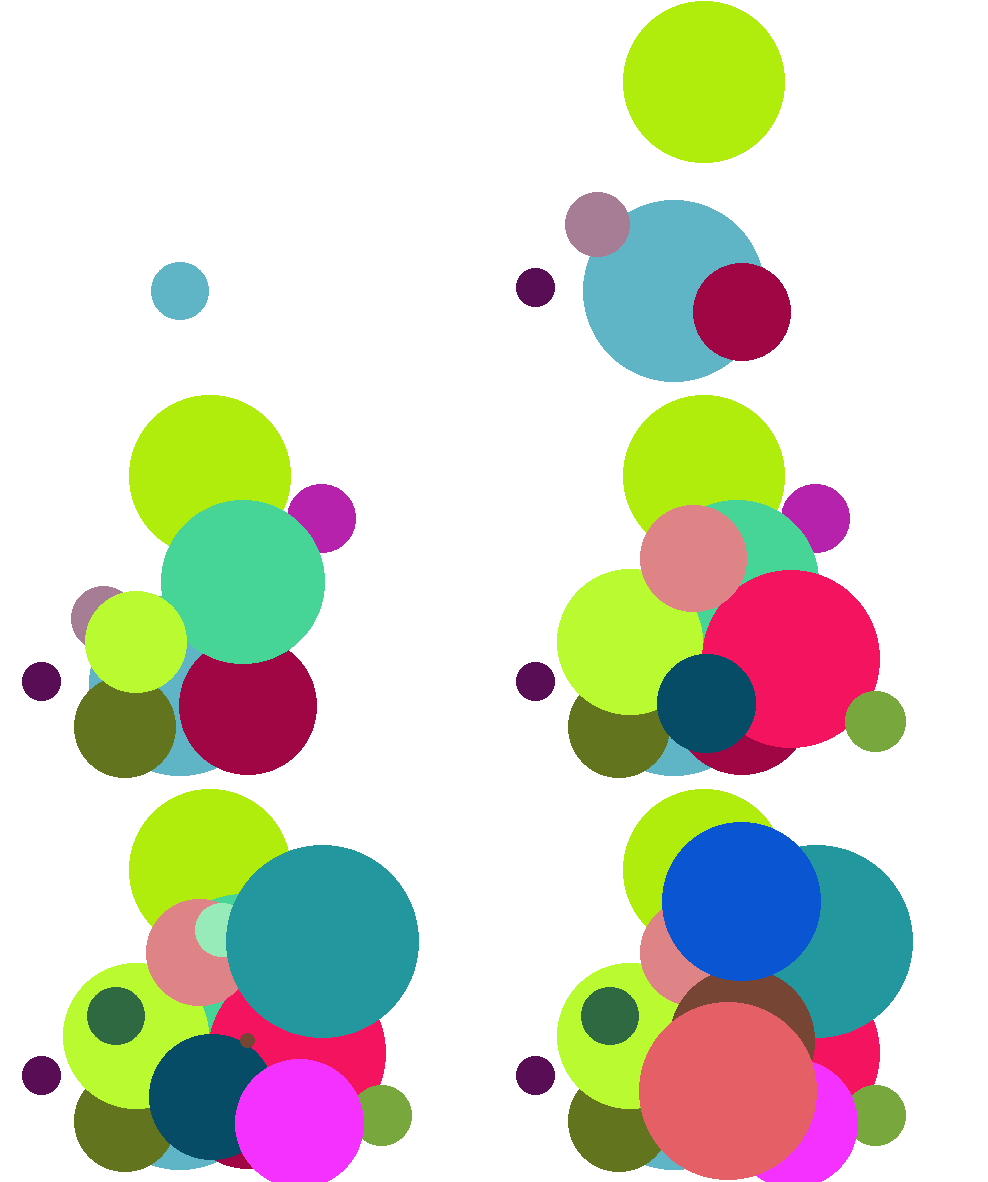
Growing Circles
Waiting vs Events
Many would probably try to approach this doing something like as follows:
def growing_circles():
  gw = GWindow(WIDTH, HEIGHT)
  for i in range(NUM_CIRCLES):
      |||Create a new circle|||
      |||Animate the circle to grow it|||
      |||Wait for the animation to complete|||
The problem here is that there is no clear way to “wait” for an animation to complete
- Code you write runs basically instantly or when run by a callback
Instead, we need an event callback that takes care of both circle creation (when needed) and growing animations
Using Events Wisely
Need to keep track of what the program should be doing, and then have the timer callback function handle whatever is needed
Conceptually, for these circles, might look more like this:
def step():
    if |||there is a circle needing growing|||
        |||then increase its size|||
    elif |||a new circle needs to be created|||
        |||then create one|||
    else:
        |||stop the madness by stopping the timer!|||
Making those circles grow!
from pgl import GWindow, GOval
import random

GWIDTH = 500
GHEIGHT = 400
N_CIRCLES = 20
MIN_RADIUS = 15
MAX_RADIUS = 100
DELTA_TIME = 10
DELTA_SIZE = 1

def random_color():
    color = "#"
    for i in range(6):
        color += random.choice("0123456789ABCDEF")
    return color

def create_filled_circle(x, y, r, color="black"):
    circ = Goval(x-r, y-r, 2*r, 2*r)
    circ.set_filled(True)
    circ.set_color(color)
    return circ

def growing_circles():
    def start_new_circle():
        r = random.uniform(MIN_RADIUS, MAX_RADIUS)
        x = random.uniform(r, GWIDTH - r)
        y = random.uniform(r, GHEIGHT - r)
        gw.circle = create_filled_circle(
                            x, y,
                            0, random_color()
                        )
        gw.desired_size = 2 * r
        gw.current_size = 0
        gw.circles_created += 1
        return gw.circle

    def step():
        # Grow a circle if needed
        if gw.current_size < gw.desired_size:
            gw.current_size += DELTA_SIZE
            x = gw.circle.get_x() - DELTA_SIZE / 2
            y = gw.circle.get_y() - DELTA_SIZE / 2
            gw.circle.set_bounds(
                            x, y,
                            gw.current_size,
                            gw.current_size
                        )
        # or add a circle if you can
        elif gw.circles_created < N_CIRCLES:
            gw.add(start_new_circle())
        # or stop
        else:
            timer.stop()

    gw = GWindow(GWIDTH, GHEIGHT)
    gw.circles_created = 0
    gw.current_size = 0
    gw.desired_size = 0
    timer = gw.set_interval(step, DELTA_TIME)
Simulation
- Our technique of piecing together many small movements to resemble motion is not limited to just making pretty animations!
- Physicists use similar techniques to break complex problems into
simple pieces
- “In this small time interval, the motion is simple”
- Chain together many time intervals to construct the full motion
- There are many areas where this is the only way to solve a problem, as we can not write down equations to express the result otherwise!
The Two Body Problem
from pgl import GWindow, GOval, GLine
from pgl_tools import create_filled_circle

def two_body():
    def step():
        # Compute forces and accelerations
        dx = planet1.get_x() - planet2.get_x()
        dy = planet1.get_y() - planet2.get_y()
        r3 = (dx ** 2 + dy ** 2) ** (3 / 2)
        ax = 1000 / r3 * dx
        ay = 1000 / r3 * dy

        # Update velocities
        gw.vx1 += -ax
        gw.vy1 += -ay
        gw.vx2 += ax
        gw.vy2 += ay

        # Augment history paths
        path1 = GLine(
            planet1.get_x() + 10,
            planet1.get_y() + 10,
            planet1.get_x() + 10 + gw.vx1,
            planet1.get_y() + 10 + gw.vy1,
        )
        path1.set_color("red")
        path1.set_line_width(3)

        path2 = GLine(
            planet2.get_x() + 10,
            planet2.get_y() + 10,
            planet2.get_x() + 10 + gw.vx2,
            planet2.get_y() + 10 + gw.vy2,
        )
        path2.set_color("cyan")
        path2.set_line_width(3)

        # Move planets
        planet1.move(gw.vx1, gw.vy1)
        planet2.move(gw.vx2, gw.vy2)

        gw.add(path1)
        gw.add(path2)

    gw = GWindow(600, 600)
    # Defining state variables
    gw.vx1, gw.vy1 = 0, 1
    gw.vx2, gw.vy2 = 0, -1

    planet1 = create_filled_circle(200, 200, 10, "red")
    planet2 = create_filled_circle(400, 200, 10, "cyan")

    gw.add(planet1)
    gw.add(planet2)

    gw.set_interval(step, 30)

if __name__ == '__main__':
    two_body()
Arcs
Something to smile about
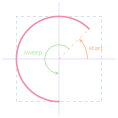
- The
GArcclass represents an arc formed by taking a section of the perimeter of an oval. - 3 things necessary:
- The bounding rectangle geometry (upper left corner and width and height)
- The starting angle (in degrees)
- The sweep angle (in degrees) which is how far the arc extends
- Negative angles move in the clockwise direction
Fillable Arcs
- The
GArcclass is aGFillableObject, and so you can call.set_filled()on aGArcobject - Filled like a pie-shaped wedge formed between the center of the bounding box and the starting and end points of the arc
def filled_arc():
    gw = GWindow(400, 400)
    arc = GArc(50, 50,
               350, 350,
               90, 135)
    arc.set_color("orange")
    arc.set_filled(True)
    gw.add(arc)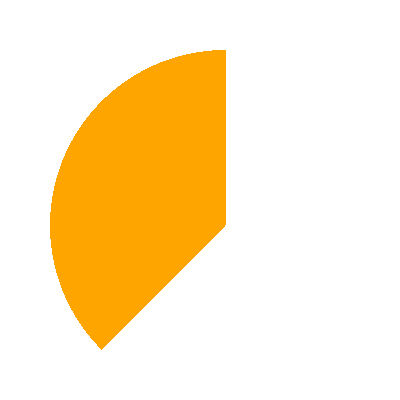
Polygons
The GPolygon class
- Used to represent graphical objects bounded by line segments
- Polygons consist of several vertices bounded by edges
- Location not fixed in upper left, but at some convenient reference
point
- Often a convenient reference point is near the center of the object, but it doesn’t need to be
GPolygons areGFillableObjects, so they can be filled
Polygonal Construction
- The
GPolygonfunction creates an empty polygon, to which you then can add vertexes - Can create a vertex by calling
.add_vertex(x,y)on theGPolygonobjectxandymeasured relative to the reference point
- Vertexes past the first can be defined in a few ways:
.add_vertex(x,y)adds another new vertex relative to the reference point.add_edge(dx,dy)adds a new vertex relative to the preceding vertex.add_polar_edge(r, theta)adds a new vertex relative to the previous using polar coordinates
Triangle By Vertex
def triangle_by_vertex():
    def create_triangle(b, h):
        tri = GPolygon()
        tri.add_vertex(-b / 2, h / 2)
        tri.add_vertex(b / 2, h / 2)
        tri.add_vertex(0, -h / 2)
        return tri

    gw = GWindow(500, 500)
    triangle = create_triangle(200, 200)
    triangle.set_filled(True)
    triangle.set_color("red")
    gw.add(triangle, 250, 250)
Triangle by Polar Edge
def triangle_by_polar_edge():
    def create_eq_triangle(side):
        tri = GPolygon()
        tri.add_vertex(0, 0)
        for i in range(0, 360, 120):
            tri.add_polar_edge(side, i)
        return tri

    gw = GWindow(500, 500)
    triangle = create_eq_triangle(100)
    triangle.set_filled(True)
    triangle.set_color("green")
    gw.add(triangle, 250, 250)
Compounding Problems
Compound Objects
- The
GCompoundclass makes it possible to combine several graphical objects so that the entire structure behaves as a single object - Can be thought of as a combination of
GWindowandGObject- You can add objects to it, but then you can also add it (and everything in it) to a window as a single unit
- Uses its own coordinate system relative to a reference point
- When adding objects to the
GCompound, you place them relative to the reference point - When adding the
GCompoundto a canvas, you set the location of the reference point
- When adding objects to the
And my Axe!
def my_axe():
    def create_axe():
        axe = GCompound()
        shaft = GRect(-15, 0, 30, 300)
        shaft.set_filled(True)
        shaft.set_color("brown")
        axe.add(shaft)

        blade = GPolygon()
        blade.add_vertex(0, 0)
        blade.add_vertex(200, -50)
        blade.add_vertex(200, 50)
        blade.set_filled(True)
        blade.set_color("gray")
        axe.add(blade, -80, 50)
        return axe

    gw = GWindow(500, 500)
    axe = create_axe()
    gw.add(axe, 250, 100)
Breakout!
Project 2: Breakout!
- Project 2 is recreating the classic arcade game Breakout!
- Guide is posted now, due next Monday
- Get an early start! Finish up PS4 tonight as needed, but start Breakout tomorrow!
Breakout History
- The popular Breakout arcade game was released by Atari in 1976
- Atari founder Nolan Bushnell wanted a new game that would build on the success of the earlier game Pong. He assigned Steve Jobs to develop the game, promising a bonus if the game required a small number of chips.
- As Wikipedia tells the story, “Jobs had little specialized knowledge of circuit board design but knew [his friend Steve] Wozniak was capable of producing designs with a small number of chips. He convinced Wozniak to work with him, promising to split the fee evenly between them.”
- Wozniak completed the game design in four days, but Jobs never told him about the bonus offer. Jobs was paid \(\$5,000\), but Wozniak received only \(\$350\).
- Jobs and Wozniak co-founded Apple Computer the following year, which has grown to be the largest corporation in the world by market capitalization.
Breakout Basics
- Breakout is a game in which the player attempts to break all the colored bricks by causing a bouncing ball to collide with them
- The player controls a paddle at the bottom of the screen which the
ball will bounce off
- The paddle can only move left and right
- If the ball makes it past the paddle to the bottom of the screen,
the player loses a life
- Lose 3 lives and it is game over!
Breakout Milestones
- Breakout is broken up over 5 milestones
- You have already seen or written pieces of similar code to many of
the milestones!
- Milestone 0: PS4 brick pyramid
- Milestone 1: Section stamping problem (last week)
- Milestone 2: Section bouncy Pacman problem (this week)
- Milestone 3: Section Hungry Pacman problem (this week)