Quality of Life Improvements
Jed Rembold
April 27, 2026
HAPPY LAST MONDAY!!!
- Scan the QR code or go to https://tools.jedrembold.prof/daily
- Fun group question: What annoying thing do you find getting in the way between how you’d like to code, and how you actually code?
Quick Announcements
- Infinite Adventure due tonight!
- If you are using some late days still, that is ok, but make sure it is submitted in the next few days unless you’ve made other arrangements with me.
- Midterm 2 Corrections due Friday night!
- Don’t wait until the last minute to submit! These can not be late!
- Enigma feedback should be coming your way soon. I’ll post another grade report once they are all shared
- On Wednesday I’ll leave some time for class evaluations
Daily LO’s
- What tooling exists to improve our lives as coders and developers?
- Why might type annotations be useful to us?
- How can we do version control better?
Leaving Yourself Hints
What are Type Annotations?
Python is a dynamically typed language: we can change around what type of object is assigned to different variables whenever we want
- This is often convenient, but can get confusing as programs get more complex
- It can be useful for us to specify what types of
things we expect certain variables to contain
- These are just guidelines! They don’t actually change how the code runs at all
We can indicate these types by using type hints or type annotations
def greet(name: str) -> str:
    return f"Hello, {name}!")
Why use Type Hints?
- Improve Readability
- Your hints contain bits of documentation, which make it easier to understand functions and methods at a glance
- Early Error Detection
- Many IDEs can use type hints to catch common errors before you would run your program
- Better Autocompletion
- Many IDEs can use type hints to give you better autocomplete suggestions
Variable Annotations
You can specify what type a variable should have by including the type after a colon when you declare the variable name
user_name: str = "Jed"
age: int = 40
is_living: bool = True
If you have compound structures, you can indicate the contents:
profs: list[str] = ['Jed', 'Calvin', 'Fred']
prof_start: tuple[str, int] = ('Jed', 2015)
profs_start: list[tuple[str, int]] = [
  ('Jed', 2015), ('Calvin', 2022)
]
prof_dict: dict[str, int] = {'Jed': 2025}
Function Annotations
Even more than variable annotations, function annotations can be extremely useful to define input and output types
def myfunc(x: int, y: float, z: bool = True) -> float:
    if z:
        return x * y
    else:
        return x / y
Hints come before any default values
Use the
-> |||type|||syntax to specify what will be returned
Different Types
Sometimes, you do want to allow for situations where a variable might have multiple possible types
- This is particularly true if you want a variable to potentially be
None
- This is particularly true if you want a variable to potentially be
You can use the
|symbol to indicate multiple variable types:def index_finder( array: list[str], target: str ) -> int | None: for i, elem in enumerate(array): if elem = target: return i
Gittin’ Good
Why Version Control?
- Version-control is all about managing the evolution of a file’s
state across time
- Tracking what changes were made
- Often including why those changes were made as well
- Tracking who made those changes
- Tracking what changes were made
- We all break things from time to time. Having an easy way to revert to the last working version is important.
- It is much more streamlined and reliable than maintaining multiple backup files with various esoteric names.
Understanding Git
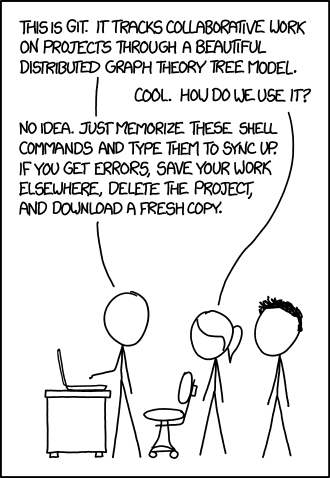
- Git is a form of version-control software
- Git exists independently of GitHub
- Best of think of GitHub as just one possible site where you can store Git repositories remotely
- Goal for today is to:
- Install if interested
- Get a little “under-the-hood” explanation
- Go over some basic commands and workflows
- Explain how to connect GitHub and Git for easier collaboration
How to Track History
- It can be useful to think of version control as a history of what happens in a particular folder
- Imagine a series of “snapshots” of what the contents of a directory look like
- Means you essentially need to store two things:
- The contents of the snapshot (folders and files)
- Git refers to these as trees and blobs, respectively
- How the latest snapshot is related to previous snapshots
- To be able to trace back a full history, you need to know what the previous snapshot was
- Git stores this information in what it calls a commit
- The contents of the snapshot (folders and files)
Trees and Blobs
- Trees can be envisioned as a mapping from a directory name to a list of other trees or blobs inside
- Blobs are just a sequence of bytes that store their contents
Commits
- Commits contain several pieces of information:
- A list of the parent (preceding) commits: Frequently just one, but can be more!
- The author of the commit
- When the commit occurred
- A message describing the commit
- The snapshot information itself, which is a tree
Objects
- Git thinks of all three of these things (trees, blobs, and commits) as more general objects
- Git maintains a mapping of all objects, which use the hash
of the object as the key to look up the specific object contents in
memory
- Sha1 hashes are used, and thus are comprised of 40 hexadecimal characters
- This hash is important! In any object, when it contains information about another object, it just contains the hash of that object, not the actual data
- You’ll be able to frequently see (and use) these hashes when using Git
Getting Started
If you are just getting started tracking a folder, you need to initialize Git in that folder
git init- This might not look like it does anything initially, but will add a
.gitfolder to your folder, where Git stores all its content
- This might not look like it does anything initially, but will add a
Perhaps the most used command will be to check the current status of Git in your folder
git statuswhich will print out information regarding the current state of the files
Making a Snapshot
- Taking a “snapshot” is actually a two-step process in Git
- Gives more flexibility that you might not want everything in the folder to be part of the snapshot
- Step 1: Staging the desired files
- Staging a file says “I want this file to be part of the next snapshot”
- Done with
git add {file/folder name}- If given a folder instead of a file, adds everything within that folder
- Step 2: Taking the snapshot of the staged files
- Actually create the commit using
git commit - An editor window will open where you can type a short descriptive message, and then save and exit
- Actually create the commit using
Seeing the history
Git has a logging function that will allow you to see information about your repository history
git logThere are a ton of customizations you can do to this output, but some include
--allshows the log of all branches, not just the current--graphshows the connecting lines between commits, including branching--decorateprints short names of references--onelinecompresses snapshot output to fit on a single line for compactness
Seeing the differences
Sometimes you might need to see what has changed between two states
- This can be between the current state and the last commit or between two different commits
The Git
diffcommand will display an output of all changes between two pointsgit diff {initial} {final} {filename}- By default,
{initial}is taken to be the last commit and{final}to be the current state of the files - If
{filename}is not given, it will show diffs on all files that have changed
- By default,
Checkout Time
A history is of limited use if you can’t backtrack or move through it
The Git
checkoutcommand allows you to “move” what you are currently looking at to a different commitgit checkout {desired commit}- You can use either a piece of the hash to indicate the commit or a reference name
Note that checking out a past commit actually changes the contents of your folder to reflect what it looked like at that time!
- This can be a good/bad thing if you have current edits you were working on that haven’t been committed
Dealing with Remotes
So far we have great ways to manage our local histories, but still not great ways to collaborate
Git has a concept of remotes, which are basically just copies of a repository kept on a (most of the time) remote server
Git works locally 99% of the time, so there are special commands to use when you want to “sync” contents between your local repository and the remote repository
Before either can be done, we need to inform Git of where the remote for a given repository exists
git remote add {name} {url}{name}is by conventionoriginunless you are connecting multiple remotes{url}is the address where that remote can be reached
Cloning
Often, you might be given a remote address initially, and need to copy that repository over to your local system
Git calls this cloning a repository
git clone {remote url} {directory name}{remote url}is the url of where the remote lives{directory name}is the local directory you want to copy that remote repository into- If not given, it will create a directory with the same name as the remote repository
This automatically sets up a remote for the new local git repository
Upload Changes to a Remote
In order for the remote to be useful, we need to let it know what we have done locally
Git calls this pushing changes to the remote
git push {remote name} {local branch}:{remote branch}Typing all that in can get old, so we can specify it once by saying
git branch --set-upstream-to={remote name}/{remote branch}at which point in the future we could just do
git push
Getting the latest updates
On multi-computer setups, it is possible that another system uploaded content to the remote that you do not yet have locally
- Git does not check for this sort of thing automatically! You need to be clear about checking for an update
Git calls this fetching from the remote
git fetch- If there is more than one remote, you can specify the remote after
fetch
- If there is more than one remote, you can specify the remote after
Gets the remote information, but does not merge it with your local content
To do both at the same time (which is what you usually want), you can do
git pull