Calculating the Shell
Jed Rembold
January 29, 2025
Announcements
- Homework
- Did HW2 get turned in?
- Feedback for HW1 went out over the weekend
- You likely got a notification email about it, or I can show you where to access the comments in your repository
- Homework 3 is posted
- For next week:
- DeBarros: Ch 7
The Terminal
Why a Terminal?
- A fair question, in an age of modern GUIs, might be “Why should I
learn to work in a terminal?”
- Can allow you to perform highly flexible operations that may not be built into a GUI
- Present on any computer you might come across
- Connecting to remote systems or servers is increasingly necessary to access data, and a terminal gives you the most flexible method of doing so
- Most programming languages or IDEs have an option to drop you to a terminal, so knowing enough to take full advantage is useful
What even is a terminal?
- A terminal historically was a piece of hardware to interact with a computer: entering in information through a keyboard and outputting information through a monitor
- Computers have advanced much since then, so these days a
terminal emulator is generally used to mimic the functionality
of the older hardware terminals
- Most systems have a terminal emulator of some sort built into the
operating system
terminalon MacOScmdon Windowsurxvt,xterm, etc. on Linux
- Most systems have a terminal emulator of some sort built into the
operating system
- The terminal itself though is just the input-output structure. What
appears in the terminal and how you interact with the terminal is
determined by the shell
- This is more important than it might seem. Two people running the same terminal emulator may see very different things on the screen
The Shell
The shell dictates how the user interacts with the terminal
- How commands are entered, what commands are allowed, how output is displayed, etc
- Basically the software that controls your interactions with the terminal
There are many possible shells, some of which have been around a very long time, and many of which build on one another
- Bourne Shell (sh)
- C Shell (csh)
- Bourne Again Shell (bash)
- Friendly Interactive Shell (fish)
- Z Shell (zsh)
- cmd.exe
- Powershell
Shell as a Language
- Shells are interactive environments, just like you have the interactive environment in R or Python
- This means that the commands you type into the shell are a programming language in and of themselves!
- Why script in this language rather than something else like R or
Python?
- The shell commands are specifically tailored to working with existing files on your computer
- While you could achieve similar using other scripting languages, for this sort of use-case, shell scripting tends to be more straightforward
BASH
- We’ll focus on the BASH shell in this class
- Tends to be the default in most Linux environments, which means most servers you might connect to
- MacOS defaults to the ZSH shell, which is largely built on top of BASH and any that works in BASH will work in ZSH
- In Windows, it is more difficult to get a terminal with the BASH
shell working.
- There are considerable differences between Window’s default PowerShell and BASH though
- Options
- Install the Windows Subsystem for Linux (WSL2) which installs a lightweight virtual Linux environment on your system in which you can launch and run a BASH shell.
- Installing GitBash, which is meant largely for Git but gets you a BASH shell that seems to do everything we need it to in this class
Navigating the Shell
- Shell commands always operate at a particular location in your file system
- Perhaps the most import commands then involve navigating around your file structure
| Command | Description |
|---|---|
pwd |
Prints out the current working directory |
cd arg |
Changes directory to the provided directory path |
ls |
Lists the contents of the current directory |
- Directories are separated by
/in Linux/Mac and\on Windows - Directory paths can be either absolute or relative
- Absolute paths start from the root of your file system
(
/on Mac or Linux, usuallyC:\on Windows) - Relative paths are determined from the current folder location
..refers to the parent directory.refers to the current directory
- Absolute paths start from the root of your file system
(
Spaces are Important!
- A common topic that you need to remember when working in a shell is that spaces have special meaning
- Most shells use a space to separate between a command and an argument/option, or between multiple arguments/options
- If you need to refer to a file path with spaces, you must either
quote it or “escape” the spaces with a backslash in front of each
"/teaching/class/data science in the natural sciences"/teaching/class/data\ science\ in\ the\ natural\ sciences
- This will be a recurring theme, so in general don’t go inserting arbitrary spaces in your shell commands
Copy Pasta
Navigating your file structure is fun, but not useful by itself
You have several commands available to you for creating, moving, or removing files:
Command Description mkdir |||arg|||Makes a new directory at the given argument location. Defaults to relative mv |||og_file||| |||new_file|||Moves the |||og_file|||to the new location (and name) as|||new_file|||cp |||og_file||| |||dup_file|||Copies the |||og_file|||to the location (and name) of|||dup_file|||rm |||arg|||Removes the file given by |||arg|||from the system. This bypasses any trashcan!
Flags and Options
Many commands have various options that can be toggled or set through the use of flags
A flag is a short command prefaced by a
-or--that comes after a shell commandShort forms are usually a
-followed by a single characterls -sLong forms are usually a
--followed by a longer term or phrasels --sizeShort form flags can be concatenated to effectively combine multiple flags
ls -sh = ls -s -h
How do you know what options are available? The help option!
ls --help
I need more help!
Sometimes the help options for a command doesn’t give you quite enough information or details to understand what the option does
Almost all BASH commands have built in help pages in the form of a manual
To access and read a manual, use the BASH command
man cmd, wherecmdis the command you want to get information aboutman lsmanactually opens up the documentation in another program calledless, which allows you to scroll around and then pressqwhen done to return to your original screen
Practice!
Choose a folder on your system that has a lot of files in it, and then see if you can achieve the following in the shell:
- Open a terminal and shell
- Navigate to your chosen folder
- Display the contents of that folder so that they:
- Are ordered by size
- Display the size next to each file in human-readable format
- Include any “hidden” files (those that start with a
.) - Use colors
Mini Break!
Shell Details
How does it know?!
- A fair question might be: how does the terminal know what all these
programs are?
- Or alternatively, how could you get a list of all the possible programs?
- Whenever the shell encounters a command, it looks in some predetermined locations to see if it finds a program with a matching name
- These locations are called your path
The path is just a colon delimited list of directory locations
It is stored in a special variable called an environment variable
echo $PATH
Environment Variables
- The command
echowill generally print whatever argument comes after it to the screen - We specify that we are interested in a particular variable value by prefacing that variable name with a dollar sign
- There are many common environment variables that are always defined and you have access to:
| Variable | Contains |
|---|---|
| PATH | The list of all directories searched for a command |
| USER | The currently logged in user |
| HOME | The home directory of the current user |
| SHELL | The current shell being used |
| TERM | The current terminal emulator being used |
| LANG | The current language encoding |
In and Out
- Programs have two primary “streams” of information associated with
them:
- an input stream, called stdin, or standard input
- an output stream, called stdout, or standard output
- Both generally work with sequences of bytes, or text
- By default,
stdinis your keyboard andstdoutis the screen being printed to - We are actually allowed to “rewire” these inputs and outputs though!
- Called redirecting and uses the
<and>commands <changesstdinto be whatever comes after>changesstdoutto be whatever comes after
- Called redirecting and uses the
A weird cat
The BASH
catfunction concatenates any of its arguments together, sticking them together end to end, and outputs them tostdout- If given filenames for arguments, for example, it will stick their contents together
catis frequently just used with a single argument to display it to the screen
If given no arguments,
catinstead reads fromstdinWe can redirect any of these as we might see fit:
cat > temp.txt
cat < temp.txt
cat < temp.txt > new.txt
Be aware that
>overwrites the contents of a file if you redirect there. You can use>>to append the contents to a file if you prefer
Plumbing Time
Because so many shell commands accept input from
stdinand output tostdout, it can be very useful to take the output of one and pass it into anotherThis could be done with intermediate files, but it is more convenient to pass the information directly, using what are called pipes
Pipes utilize the pipe character
|and basically say: “take thestdoutfrom the left command and use it as thestdinon the right command”ls | catYou can chain as many pipes together as you like
This is where the real flexibility of shell scripting comes into play! It allows you to combine many smaller tools effortlessly to achieve a final product
Practice!
The wc command stands for “word count” and
will give you information about the number of words, characters or lines
read in from a file or stdin. Use this in
conjunction with ls to write the number of
current objects in a folder to a file called
obj_count.txt. Don’t forget you can check the
help flag or man page of wc for some more
information on how you can customize its output!
Mini Break!
SQL Tidbits
Not Null
Probably have come across instances where you don’t want to have a bunch of
NULLvalues in your output queryYou can not filter them out using
colname != NULL- A
NULLvalue comparison always givesNULL, no matter the comparison
- A
Need to use the keywords
IS NOT NULL(orIS NULLif you want to find the null values)SELECT |||column||| FROM |||table||| WHERE |||column||| IS NOT NULL;
Some Commentary
- It can be useful sometimes to leave yourself little notes or explanations in your queries, especially if you are saving them for later
- Like many programming languages, SQL has the concept of a comment, which is a piece of text that is entirely ignored by the system when running commands
- Use a double dash prefix
--to turn everything following on that line to a comment - Bracket an area with
/*and*/to bulk comment everything between the two symbols
-- This is a comment
SELECT *
FROM |||table||| -- this is my table name
ORDER BY |||column||| /*
Nothing here of note!
Still nothing! */
;
SQL Calculations
Making Calculations
- Just like your favorite spreadsheet program, SQL can perform a wide
variety of calculations on data within tables
- Basic arithmetic
- Calculations between columns
- Calculations within columns
- Applying functions to columns
- We’ll initially focus on how to do the first several, and save things like functions until a bit later in the semester
Testing in SQL
- When testing or troubleshooting, it can be useful to not have to
work with entire tables
- Keeps things simple
- You don’t have to worry about generating a “test” table to work with
- You can run
SELECTstatements on values directly if needed, omitting a reference to a table!Just leave off the
FROMportion of the statementSELECT CAST('Jan 25, 2022' AS DATE); SELECT 'aardvark' > 'Zebra';
- This can be particularly useful as we begin to look at how SQL handles basic calculations
Fundamental Arithmetic
- SQL understands all the basic arithmetic symbols and operations you learned in grade school
| Operator | Description | Example |
|---|---|---|
+ |
Addition | 4 + 5 |
- |
Subtraction | 8 - 5 |
* |
Multiplication | 2 * 4 |
/ |
Division | 8 / 2 |
- All are part of the SQL standard, available in any variant
- All of these can be used and computed directly in whatever portion of an SQL command you might need (selects, filters, ordering, etc.)
Further Operation Symbols
- Additionally, Postgres supports a handful of other common mathematical symbolic operations
| Operator | Description | Example |
|---|---|---|
% |
Modulo (remainder) | 7 % 5 |
^ |
Exponentiation | 3 ^ 2 |
|/ |
Square root | |/9 |
||/ |
Cube root | ||/27 |
! |
Factorial | 5! |
@ |
Absolute value | @ -42 |
- I prefer the functional counterparts (coming soon!) instead of some of these symbols
Resulting Data Types
- The types of objects involved in an operation determine the resulting type
- Basic arithmetic and modulo:
- Two integers → an integer
- Numeric on either side → numeric (not necessarily with the same precision/scale)
- Any float → double precision
- Be most wary of dividing two integers!
- The exponentiation and root operations will mostly return floats or numeric, regardless of if an integer is entered
- You may need to cast a value to a different data type to get the desired output at times!
- The
pg_typeof()function can be useful at times if you need to check a data type
There Must be Order
SQL follows your standard order of operations
- Exponents and roots
- Multiplication, division, and modulo
- Addition and subtraction
If you want some other ordering, you need to use parentheses to group things accordingly, as operations in parentheses happen first
SELECT 4 ^ (9 % 2 + 1);
Common Mathematical Functions
- Postgres supports many common mathematical functions as well
| Function | Description |
|---|---|
sqrt(num) |
Square root |
abs(num) |
Absolute value |
factorial(num) |
Factorial of a number |
sin(num) |
Sine of radians |
sind(num) |
Sine of degrees |
asin(num) |
Inverse sine in radians |
degrees(num) |
Convert radians to degrees |
log(num) |
Base 10 logarithm |
ln(num) |
Base e logarithm |
round(num,scale) |
Round number to scale decimal places |
Renaming Columns
You may have noticed that the default column names when selecting a calculation can be nonsensical
SQL provides a way for you to name a column on the fly, using the
ASkeywordTechnically forms what is commonly called an alias
Syntax:
SELECT ||| fancy calculation ||| AS |||column name|||;You can then refer to that column name later in your command if you want or need
- In particular, in
ORDER BYor (later)GROUP BY - You can not use the alias in
WHEREor (later)HAVING
- In particular, in
Column Operations
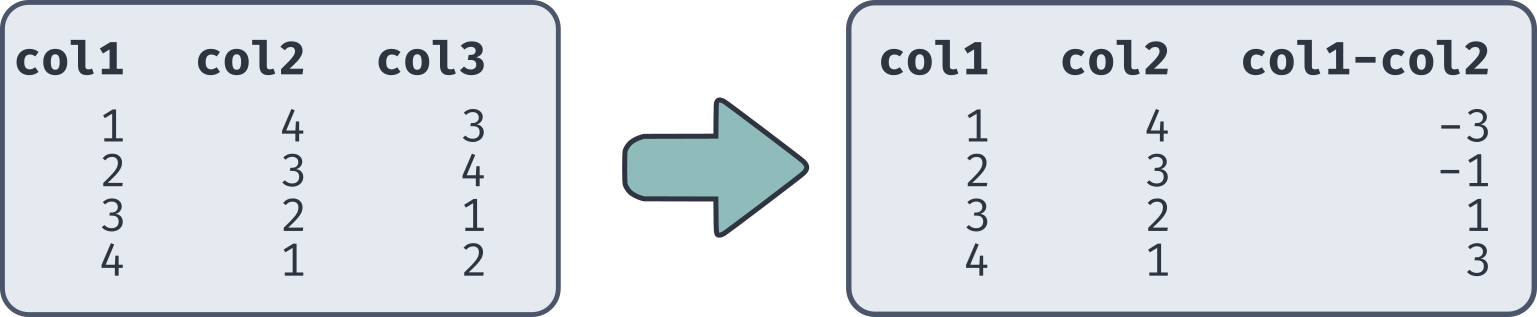
You can do operations on entire columns at a time
Just use the column name in the calculation expression
Calculations are done on a row by row basis
Can use anywhere else you would use a calculation (selections, filters, ordering, etc.)
SELECT col1, col2, col1 - col2 FROM tablename;
SQL Aggregate Calculations
Bulk Column Operations
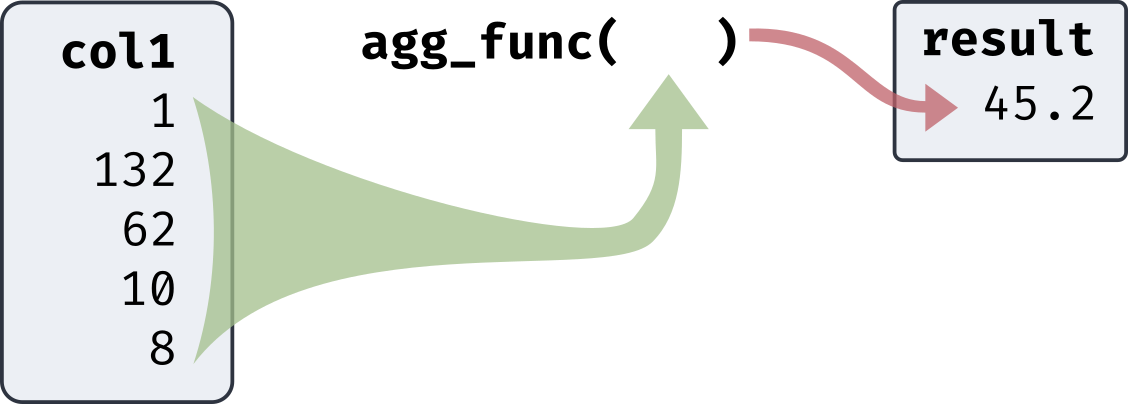
- SQL also gives you an easy method to perform calculations between all the numbers in a column
- Commonly called aggregate functions as they return only a
single output from many inputs
- All the rows in the specified column are treated as the inputs
- Because aggregate functions just return a single value, you can’t
generally mix them with selections that would return multiple rows
- SQL selections return actual table objects, so row and column numbers need to remain equal
- Called on a specific column by placing the column name inside the parentheses
Common Basic Aggregates
- Many common aggregate functions are geared around determining descriptive statistics
- Unless otherwise specified,
NULLvalues are ignored in the calculations
| Function | Description |
|---|---|
avg(col) |
Finds the average or mean of a column |
sum(col) |
Computes the sum of a column |
count(*) |
Computes the number of input rows in the table |
count(col) |
Computes the number of non-null input rows in that column |
max(col) |
Finds the maximum value in a column |
min(col) |
Finds the minimum value in a column |
- Note: You can not use aggregate functions
within
WHEREstatements
Medians and Percentiles
The median is commonly desired as it is a measure of the distribution center less affected by outliers
Postgres (and most other SQL variants) do not have a
median()functionInstead they offer more general percentile functions
- Allow you to find the values in the data where X percent of the data is less than or equal to that value
- The median just corresponds to the 50th percentile
Ordering matters here, so the syntax needs to be a bit different:
SELECT
  percent_func(|||desired frac|||) WITHIN GROUP (ORDER BY |||column|||)
FROM |||table|||;
WITHIN GROUP Functions
- All
WITHIN GROUPfunctions entirely ignoreNULLvalues - Postgres offers you two options for determining percentile
locations:
percentile_contis best used for continuous values- Should the percentile land between two data points, they will be averaged
percentile_discis best used for discrete values- Will return the last actual bit of data before the percentile split
- Postgres also offers a function to find the mode of a distribution
(not in standard SQL)
mode()- No value needs to go within the parentheses
- If multiple values have the same count, the first encountered in the table is chosen (so the ordering still matters)
Queries to Tables
Sometimes, especially as we continue to build sophistication in our queries, you may want to save the output of a query to another database table
This can give you a multistep process in approaching more complicated actions
Sometimes useful to use a temporary table as well by adding the
TEMPkeyword- Only exists until you close out the session
To set a table to a query output, use the
ASkeywordCREATE TEMP TABLE |||temporary table name||| AS ( SELECT |||desired columns||| FROM |||existing table||| );