# Multimodal
[]()
A plugin for [Reveal.js](https://revealjs.com) to show content in modal windows.
[](https://martinomagnifico.github.io/reveal.js-multimodal/demo/demo.html)
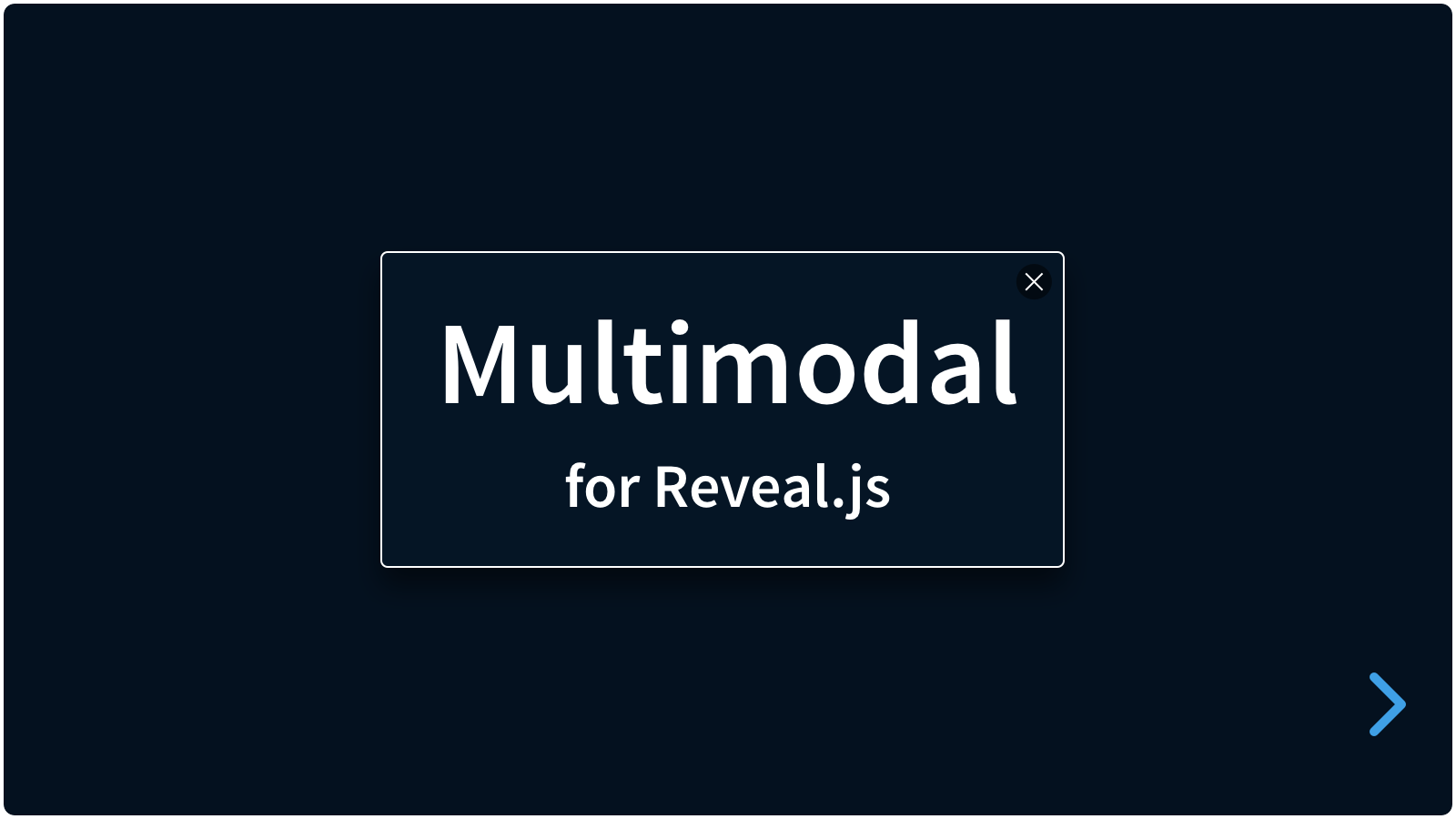
Multimodal can be used as a lightbox or actual modal to showcase images, video or HTML content from wihin a presentation. It can be triggered from text links, images, or buttons, or automatically when a slide is shown.
* [Demo](https://martinomagnifico.github.io/reveal.js-multimodal/demo/demo.html)
* [Markdown demo](https://martinomagnifico.github.io/reveal.js-multimodal/demo/demo-markdown.html)
## Basics
There are really only three steps:
1. Install Multimodal
2. Add the multimodal data-attributes to your links
2. Enjoy the modals
## Installation
### Regular installation
Copy the multimodal folder to the plugins folder of the reveal.js folder, like this: `plugin/multimodal`.
### npm installation
This plugin is published to, and can be installed from, npm.
```console
npm install reveal.js-multimodal
```
The Multimodal plugin folder can then be referenced from `node_modules/reveal.js-multimodal/plugin/multimodal`
## Setup
### JavaScript
There are two JavaScript files for Multimodal, a regular one, `multimodal.js`, and a module one, `multimodal.esm.js`. You only need one of them:
#### Regular
If you're not using ES modules, for example, to be able to run your presentation from the filesystem, you can add it like this:
```html
```
#### As a module
If you're using ES modules, you can add it like this:
```html
```
### Styling
The styling of Multimodal is automatically inserted **when the multimodal folder is manually (or automatically) copied** to the Reveal.js plugin folder.
**BUT**: If you are using a bundler like Webpack or Parcel, that uses **import**, you will also need to **import** the CSS file yourself. Depending on your setup this can be something like this:
```
import 'reveal.js-multimodal/plugin/multimodal/multimodal.css';
```
In that case, the `cssautoload` option (in the Reveal multimodal options) should be set to `false`, to avoid style loading errors.
> However, if you actually know the correct full path to the CSS file, then you can still use the `csspath` option and keep `cssautoload` set to `true`.
### Markup
It is easy to set up your HTML structure for Multimodal. To show a modal, it needs to be triggered from a trigger. A trigger needs at least a `data-modal-type`.
* From a `data-modal-url` in an anchor tag
* From an `href` attribute in an anchor tag
* From a `data-modal-url` in a button tag
```html
a data-modal-urlan href attributea data-modal-url
```
For **Markdown** markup, check the Markdown demo above.
Note: If the modal-content is not valid or can’t be found, no modal will be opened. So make sure that the content you are linking to (an image, a video, a piece of HTML) is there where you expect it.
## Modal behaviour
### Modal size
* Content in modals will display at its original size, but is constrained to the maximum size of the modal.
* The maximum size of modals is the size to the viewport, *minus the margin* as set in the Reveal config.
* The minimum size of HTML modals is 100x100 pixels. This can be set in the config.
### Navigation changes
* The `arrow keys` will close modals *and* go to the next slide
* The `space bar` or `escape key` will only close the modal
### Slide modals
To automatically open a modal when a slide is shown, add the `data-modal-type` and `data-modal-url` attributes to the section element.
```html
Slide modals
```
### Events
There are 4 events that may help you do things in your modals: `multimodal:show`, `multimodal:shown`, `multimodal:hide`, and `multimodal:hidden`. Details are in `event.detail`. Use it like this:
```javascript
deck.addEventListener("multimodal:shown", async (event) => {
const triggerInfo = event.detail.trigger;
console.log("Trigger type:", triggerInfo.dataset.modalType);
});
```
### Override navigation
To prevent the user from accidentally navigating to another slide while the modal is open, you can add the `data-modal-navblock` attribute to the triggering element.
```html
Show modal
```
## Adjust styling
The modal is styled with CSS variables, which are controlled through the Reveal.js options (see [Global options](#global-options)). Some of these options can also be set per trigger:
### Overlay
Add a `data-modal-overlaycolor` attribute to the trigger to change the overlay color on a per-trigger basis.
```html
Show modal
```
### Background and padding
The background color and padding can be set with the `data-modal-background` and `data-modal-padding` attributes. When using SVG's, this may come in handy. Both attributes can also be globally set in the options.
```html
```
### Passing extra classes
A triggering element can pass extra classes to the modal with `data-modal-class`.
```html
Show modal
```
## Global options
There are a few options that you can change from the Reveal.js options. The values below are default and do not need to be set if they are not changed.
```javascript
Reveal.initialize({
// ...
multimodal: {
background: {
html: "var(--r-background-color)",
iframe: "var(--r-background-color)",
media: "white"
},
bordercolor: "white",
borderwidth: "1px",
closebuttonhtml: '',
cssautoload: true,
csspath: '',
htmlminwidth: "100px",
htmlminheight: "100px",
overlaycolor: "rgba(0, 0, 0, 0.30)",
padding: {
html: "1em",
iframe: "0",
media: "0"
},
radius: "0.5em",
scalecorrection: true,
shadow: "0 0.5em 0.75em 0.5em rgba(0, 0, 0, 0.25)",
slidemodalevent: "slidetransitionend",
speed: 300,
videoautoplay: true,
videocontrols: true,
videoautohide: true,
zoom: true,
zoomfrom: 0.90
},
plugins: [ Multimodal ]
});
```
1. **`background`**: This sets the standard background color of the modal. If the padding is set to 0 (default for images and video’s), you will not see it. HTML, iframe and media (images and video) are set separately.
* **`html`**: This is set to "var(--r-background-color)", which is the standard background color of the presentation.
* **`iframe`**: This is set to "var(--r-background-color)", which is the standard background color of the presentation.
* **`media`**: This is set to "white".
1. **`bordercolor`**: Set to `white` by default. You can set this to any CSS color value.
1. **`borderwidth`**: Set to `1px` by default. You can set this to any CSS border width value.
1. **`closebuttonhtml`**: Allows you to add your own HTML for the close button. Can be any HTML, for example ``.
1. **`cssautoload`**: Multimodal will load the CSS if this is set to `true`. If you import reveal.js-multimodal from npm, you will need to import the CSS file yourself. If you use 'import', then csspath should be set to `false`. If you know the path to the CSS file, you can use the `csspath` option and keep cssautoload set to `true`.
1. **`csspath`**: If you want to change the styling, while using cssautoload, you can link to your own CSS file here.
1. **`htmlminwidth`**: This sets the minimum width of the HTML modals. The default is 100 pixels.
1. **`htmlminheight`**: This sets the minimum height of the HTML modals. The default is 100 pixels.
1. **`overlaycolor `**: This sets the color of the overlay. Some people may call it a backdrop. The default is `rgba(0, 0, 0, 0.30)`. That's like 30% black. You can use any CSS color here, but it’s best to use rgba for transparency.
1. **`padding`**: This sets the standard padding of modals. HTML, iframe and media (images and video) are set separately.
* **`html`**: This is set to "1em", so that content inside a modal has some breathing space.
* **`iframe`**: Set to "0" but can be changed.
* **`media`**: Set to "0" but can be changed.
1. **`radius`**: This sets the radius of the dialog box.
* **`scalecorrection `**: This sets a scale correction, used in the border width and the close button. On small devices or screens, the border and close button may be too small. This option scales them back up.
* **`shadow`**: This sets the shadow around the dialog box. The default is `0 0.5em 0.75em 0.5em rgba(0, 0, 0, 0.25)`, which is a soft but dark shadow.
* **`slidemodalevent`**: This sets the event that triggers the modal on a slide, if that slide is set to show a modal.
* **`speed`**: This sets the speed of the modal opening and closing.
* **`videoautoplay `**: This sets the video to autoplay when opened.
* **`videocontrols `**: This sets the video to show controls when opened.
* **`videoautohide `**: This sets the modal to close when the video in it ends.
* **`zoom`**: This sets the modal to zoom in when opened.
* **`zoomfrom`**: This sets the starting zoom factor of the modal when it is opened. It then zooms to factor 1.
## Like it?
If you like it, please star this repo!
And if you want to show off what you made with it, please do :-)
## License
MIT licensed
Copyright (C) 2024 Martijn De Jongh (Martino)


 ](https://martinomagnifico.github.io/reveal.js-multimodal/demo/demo.html)
Multimodal can be used as a lightbox or actual modal to showcase images, video or HTML content from wihin a presentation. It can be triggered from text links, images, or buttons, or automatically when a slide is shown.
* [Demo](https://martinomagnifico.github.io/reveal.js-multimodal/demo/demo.html)
* [Markdown demo](https://martinomagnifico.github.io/reveal.js-multimodal/demo/demo-markdown.html)
## Basics
There are really only three steps:
1. Install Multimodal
2. Add the multimodal data-attributes to your links
2. Enjoy the modals
## Installation
### Regular installation
Copy the multimodal folder to the plugins folder of the reveal.js folder, like this: `plugin/multimodal`.
### npm installation
This plugin is published to, and can be installed from, npm.
```console
npm install reveal.js-multimodal
```
The Multimodal plugin folder can then be referenced from `node_modules/reveal.js-multimodal/plugin/multimodal`
## Setup
### JavaScript
There are two JavaScript files for Multimodal, a regular one, `multimodal.js`, and a module one, `multimodal.esm.js`. You only need one of them:
#### Regular
If you're not using ES modules, for example, to be able to run your presentation from the filesystem, you can add it like this:
```html
```
#### As a module
If you're using ES modules, you can add it like this:
```html
```
### Styling
The styling of Multimodal is automatically inserted **when the multimodal folder is manually (or automatically) copied** to the Reveal.js plugin folder.
**BUT**: If you are using a bundler like Webpack or Parcel, that uses **import**, you will also need to **import** the CSS file yourself. Depending on your setup this can be something like this:
```
import 'reveal.js-multimodal/plugin/multimodal/multimodal.css';
```
In that case, the `cssautoload` option (in the Reveal multimodal options) should be set to `false`, to avoid style loading errors.
> However, if you actually know the correct full path to the CSS file, then you can still use the `csspath` option and keep `cssautoload` set to `true`.
### Markup
It is easy to set up your HTML structure for Multimodal. To show a modal, it needs to be triggered from a trigger. A trigger needs at least a `data-modal-type`.
* From a `data-modal-url` in an anchor tag
* From an `href` attribute in an anchor tag
* From a `data-modal-url` in a button tag
```html
a data-modal-url
an href attribute
a data-modal-url
```
For **Markdown** markup, check the Markdown demo above.
Note: If the modal-content is not valid or can’t be found, no modal will be opened. So make sure that the content you are linking to (an image, a video, a piece of HTML) is there where you expect it.
## Modal behaviour
### Modal size
* Content in modals will display at its original size, but is constrained to the maximum size of the modal.
* The maximum size of modals is the size to the viewport, *minus the margin* as set in the Reveal config.
* The minimum size of HTML modals is 100x100 pixels. This can be set in the config.
### Navigation changes
* The `arrow keys` will close modals *and* go to the next slide
* The `space bar` or `escape key` will only close the modal
### Slide modals
To automatically open a modal when a slide is shown, add the `data-modal-type` and `data-modal-url` attributes to the section element.
```html
](https://martinomagnifico.github.io/reveal.js-multimodal/demo/demo.html)
Multimodal can be used as a lightbox or actual modal to showcase images, video or HTML content from wihin a presentation. It can be triggered from text links, images, or buttons, or automatically when a slide is shown.
* [Demo](https://martinomagnifico.github.io/reveal.js-multimodal/demo/demo.html)
* [Markdown demo](https://martinomagnifico.github.io/reveal.js-multimodal/demo/demo-markdown.html)
## Basics
There are really only three steps:
1. Install Multimodal
2. Add the multimodal data-attributes to your links
2. Enjoy the modals
## Installation
### Regular installation
Copy the multimodal folder to the plugins folder of the reveal.js folder, like this: `plugin/multimodal`.
### npm installation
This plugin is published to, and can be installed from, npm.
```console
npm install reveal.js-multimodal
```
The Multimodal plugin folder can then be referenced from `node_modules/reveal.js-multimodal/plugin/multimodal`
## Setup
### JavaScript
There are two JavaScript files for Multimodal, a regular one, `multimodal.js`, and a module one, `multimodal.esm.js`. You only need one of them:
#### Regular
If you're not using ES modules, for example, to be able to run your presentation from the filesystem, you can add it like this:
```html
```
#### As a module
If you're using ES modules, you can add it like this:
```html
```
### Styling
The styling of Multimodal is automatically inserted **when the multimodal folder is manually (or automatically) copied** to the Reveal.js plugin folder.
**BUT**: If you are using a bundler like Webpack or Parcel, that uses **import**, you will also need to **import** the CSS file yourself. Depending on your setup this can be something like this:
```
import 'reveal.js-multimodal/plugin/multimodal/multimodal.css';
```
In that case, the `cssautoload` option (in the Reveal multimodal options) should be set to `false`, to avoid style loading errors.
> However, if you actually know the correct full path to the CSS file, then you can still use the `csspath` option and keep `cssautoload` set to `true`.
### Markup
It is easy to set up your HTML structure for Multimodal. To show a modal, it needs to be triggered from a trigger. A trigger needs at least a `data-modal-type`.
* From a `data-modal-url` in an anchor tag
* From an `href` attribute in an anchor tag
* From a `data-modal-url` in a button tag
```html
a data-modal-url
an href attribute
a data-modal-url
```
For **Markdown** markup, check the Markdown demo above.
Note: If the modal-content is not valid or can’t be found, no modal will be opened. So make sure that the content you are linking to (an image, a video, a piece of HTML) is there where you expect it.
## Modal behaviour
### Modal size
* Content in modals will display at its original size, but is constrained to the maximum size of the modal.
* The maximum size of modals is the size to the viewport, *minus the margin* as set in the Reveal config.
* The minimum size of HTML modals is 100x100 pixels. This can be set in the config.
### Navigation changes
* The `arrow keys` will close modals *and* go to the next slide
* The `space bar` or `escape key` will only close the modal
### Slide modals
To automatically open a modal when a slide is shown, add the `data-modal-type` and `data-modal-url` attributes to the section element.
```html