Commence Planning
Jed Rembold
May 20, 2025
Announcements
- Some structural parts of the course are still coming
together, and should be up by the end of the week.
- Website with slides and recordings
- The Canvas page is up, and the Discord channel is up
- I’m done with all my Spring grading now though, so this has all my attention!
- From you:
- Paper Critique 1 due next Monday
- Check-ins this weekend
- Just under 2 weeks until project proposal is due!
Gittin’ Good
Git
Understanding Git
- Git is a form of version-control software
- Git exists independently of GitHub
- Best of think of GitHub as just one possible site where you can store Git repositories remotely
- Git is a bit notorious for having commands that are perhaps unintuitive or overly complicated
- Goal for today is to:
- Get you some understanding of what is happening “under the hood” so the commands have some meaning attached to them
- Go over the basic commands and workflows
- Explain how to connect GitHub and Git for easier collaboration
Version Control
- It can be useful to think of version control as a history of what happens in a particular folder
- Imagine a series of “snapshots” of what the contents of a directory look like
- Means you essentially need to store two things:
- The contents of the snapshot (folders and files)
- Git refers to these as trees and blobs, respectively
- How the latest snapshot is related to previous snapshots
- To be able to trace back a full history, you need to know what the previous snapshot was
- Git stores this information in what it calls a commit
- The contents of the snapshot (folders and files)
Trees and Blobs
- Trees can be envisioned as a mapping from a directory name to a list of other trees or blobs inside
- Blobs are just a sequence of bytes that store their contents
Commits
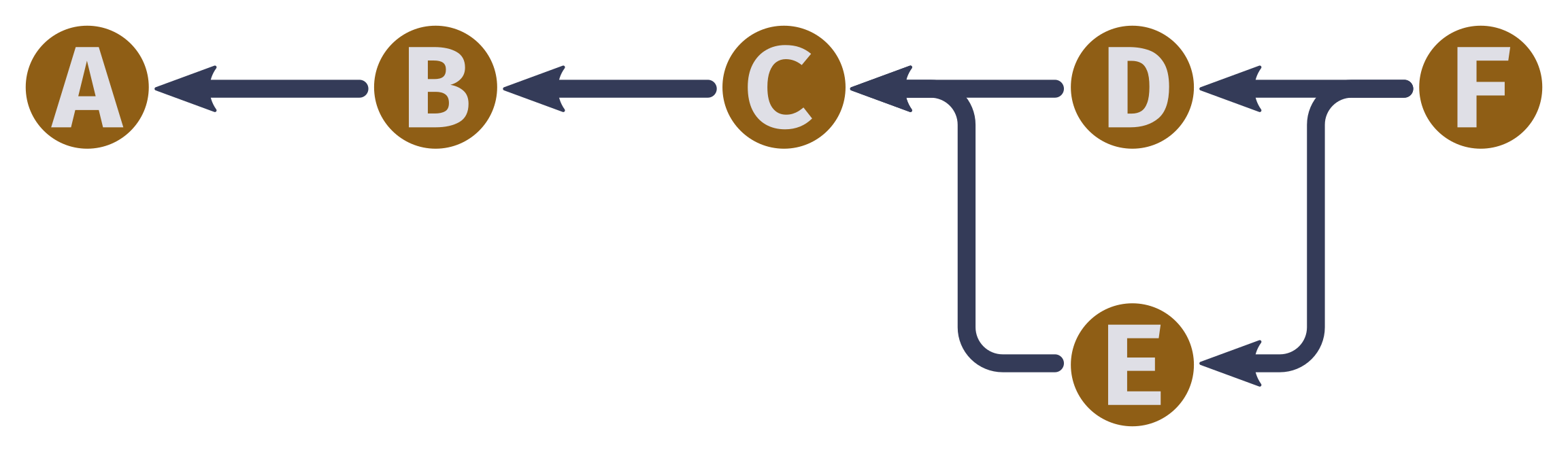
- Commits contain several pieces of information:
- A list of the parent (preceding) commits: Frequently just one, but can be more!
- The author of the commit
- When the commit occurred
- A message describing the commit
- The snapshot information itself, which is a tree
Objects
- Git thinks of all three of these things (trees, blobs, and commits) as more general objects
- Git maintains a mapping of all objects, which use the hash
of the object as the key to look up the specific object contents in
memory
- Sha1 hashes are used, and thus are comprised of 40 hexadecimal characters
- This hash is important! In any object, when it contains information about another object, it just contains the hash of that object, not the actual data
- You’ll be able to frequently see (and use) these hashes when using Git
Getting Started
If you are just getting started tracking a folder, you need to initialize Git in that folder
git init- This might not look like it does anything initially, but will add a
.gitfolder to your folder, where Git stores all its content
- This might not look like it does anything initially, but will add a
Perhaps the most used command will be to check the current status of Git in your folder
git statuswhich will print out information regarding the current state of the files
Making a Snapshot
- Taking a “snapshot” is actually a two step process in Git
- Gives more flexibility that you might not want everything in the folder to be part of the snapshot
- Step 1: Staging the desired files
- Staging a file says “I want this file to be part of the next snapshot”
- Done with
git add {file/folder name}- If given a folder instead of a file, adds everything within that folder
- Step 2: Taking the snapshot of the staged files
- Actually create the commit using
git commit - A Vim window will open where you can type a short descriptive message, and then save and exit
- Actually create the commit using
References
- Referring to objects through hashes is precise, but not hugely easy for us mere humans to remember
- Git will also maintain a list of references which are more human labels that map to a specific hash
- The Git history can be added to but not otherwise changed, and is
thus immutable
- “You can’t change the past”
- References can be changed though, to point to new hashes
Seeing the history
Git has a logging function that will allow you to see information about your repository history
git logThere are a ton of customizations you can do to this output, but some include
--allshows the log of all branches, not just the current--graphshows the connecting lines between commits, including branching--decorateprints short names of references--onelinecompresses snapshot output to fit on a single line for compactness
Seeing the differences
Sometimes you might need to see what has changed between two states
- This can be between the current state and the last commit or between two different commits
The Git
diffcommand will display an output of all changes between two pointsgit diff {initial} {final} {filename}- By default,
{initial}is taken to be the last commit and{final}to be the current state of the files - If
{filename}is not given, it will show diffs on all files that have changed
- By default,
Checkout Time
A history is of limited use if you can’t backtrack or move through it
The Git
checkoutcommand allows you to “move” what you are currently looking at to a different commitgit checkout {desired commit}- You can use either a piece of the hash to indicate the commit or a reference name
Note that checking out a past commit actually changes the contents of your folder to reflect what it looked like at that time!
- This can be a good/bad thing if you have current edits you were working on that haven’t been committed
Branching
- One powerful feature of Git is that it can allow branching histories
- Most often, these are eventually merged back together into a final product
- Allows multiple people to work on a project at the same time without constantly stepping on each other’s toes
- The
git branchcommand will take care of all our branching needsWithout anything else, it will just print out a current listing of all branches and which is currently checked out
To create a new branch, you include a name for the new branch at the end of the command
git branch {new branch name}
Merging
Merging is the act of creating a new commit based on the histories of multiple different commits
Git is pretty good at doing this intelligently, and often will just “figure things out”
- If it has an issue, it will ask you to resolve it manually
To merge, have checked out the branch you want to merge into, and then
git merge {branch to merge into current}- If all goes well, you’ll be prompted for a new commit message for the new merged commit
- If there was an unresolvable conflict, Git will tell you where and ask you to fix it manually before adding and committing
Dealing with Remotes
So far we have great ways to manage our local histories, but still not great ways to collaborate
Git has a concept of remotes, which are basically just copies of a repository kept on a (most of the time) remote server
Git works locally 99% of the time, so there are special commands to use when you want to “sync” contents between your local repository and the remote repository
Before either can be done, we need to inform Git of where the remote for a given repository exists
git remote add {name} {url}{name}is by conventionoriginunless you are connecting multiple remotes{url}is the address where that remote can be reached
Upload Changes to a Remote
In order for the remote to be useful, we need to let it know what we have done locally
Git calls this pushing changes to the remote
git push {remote name} {local branch}:{remote branch}Typing all that in can get old, so we can specify it once by saying
git branch --set-upstream-to={remote name}/{remote branch}at which point in the future we could just do
git push
Getting the latest updates
On multi-computer setups, it is possible that another system uploaded content to the remote that you do not yet have locally
- Git does not check for this sort of thing automatically! You need to be clear about checking for an update
Git calls this fetching from the remote
git fetch- If there is more than one remote, you can specify the remote after
fetch
- If there is more than one remote, you can specify the remote after
Gets the remote information, but does not merge it with your local content
To do both at the same time, you can do
git pull
Cloning
Often, you might be given a remote address initially, and need to copy that repository over to your local system
Git calls this cloning a repository
git clone {remote url} {directory name}{remote url}is the url of where the remote lives{directory name}is the local directory you want to copy that remote repository into- If not given, it will create a directory with the same name as the remote repository
This automatically sets up a remote for the new local git repository
Break Time
Group Preliminaries
Project Workbook
- To help communication and clarity, you’ll have a central GitHub repository for all your working content over the semester
- This can be created by following the link here
- These are by team, so if you are the first to accept, please make a team name with you and your partners first names. If you are the second to accept, just join the correct team.
- These repos are private to you (and me). We will make other public repos later for sharing.
- I will ask that milestone materials are uploaded to this repository each month, so keep it organized
Project Management
- There are a few things that should always be tracked on large
projects:
- Deadlines
- What currently needs to be done (prioritize!)
- What currently is being actively worked on
- Who is working on what
- All of this can actually be tracked through GitHub’s projects
interface!
- This is tied to your shared repository (though you can link to it externally)
- As part of the weekly check-ins, the expectation is that you will keep these current and up-to-date
Chartering
- Effective teamwork is all about communication, and it pays dividends to align your expectations early
- Components of alignment include:
- Shared simple rules: defining the values and rules of the team, including working agreements.
- Team skills assessment: identify areas and expertises of the team and any potential gaps
- Team interests and preferences: identify topics that make team members excited, and how team members prefer to work
- A charter is written down, so that it is crystal clear and members can refer back to it later as needed.
Defining Simple Rules
- What can each member do to create a positive experience for all?
- What are ways you can build team cohesion?
- How will you make decisions?
- How can your rules help you make decisions?
- Conflict management: what happens if rules are broken?
- How do you decide when something is “done”? How do you define “done”?
Skill Assessment
- You all share some background from this program, but also have your
own unique backgrounds! So think critically and share:
- What things do you think you are particularly strong at?
- What types of tasks do you enjoy doing?
- What things do you think you are weaker at, or less excited by?
- Are there requirements of this project that you both feel weaker in? How can you prepare for and manage those portions of the project?
- How can you distribute work in a way that plays best to member’s strengths and preferences?
Communication
- You will always have this class to check-in with one another during the week (if you all are present)
- Beyond that, how often will you check in with one another during the week?
- What form will that check-in take? Text? Video chat? In-person?
- Specifically what do you want these check-ins to cover? Progress reports? Planning?
Group Work
Group Assignments
- Given your input, these are the groups I ended up putting together:
- Jeffrey and Nate
- Ryan and Kaiona
- Brandon and Endy
- Kendall and Joshue
- Chloe and Landon
- Ruby and Tatum
- Andrew and Jace
- Cameron, Paxton, and Ghson
Tonight
- For the remainder of the evening, you have the following tasks to
accomplish with your partner, in the following order of priority:
- Introduce yourself! Quick round or two of “Bug or Feature”
- Accept and create the project workbook repository
- Create a project within the repository, so that you can start tracking and assigning tasks
- Within the
README.mdfile, go through and fill out the chartering template, to delineate the simple rules of your team, your skill assessments, and your communication strategy - Start brainstorming and researching topics!
- Start big, and get more specific: all groups are starting with at least 1 major topic of shared interest, but you may deviate or come up with others
- Think about the interesting question you want to answer first, and THEN think about how or if you can apply all the necessary themes.
- Write things down! Even ideas that you abandon. Mindmap these things!
For next week:
- You have check-ins this week! Watch the Discord announcements for the posted link
- Make sure that you have tasks created and populated in the GitHub project board for what you and your partner(s) are doing/working on over the coming week
- Paper Critique 1 due Monday night (see Canvas)