Airflow and Snapshots
Jed Rembold
May 26/27, 2026
Announcements
- VMs are live!
- You should have gotten a whole host of connection details in an email
- Some needed to connect to the VM in the first place
- Some needed to connect to other pieces of software within the network
- For next week:
- Check in with your group!
- How do you like to communicate? There are Discord channels for each group should you want to use them.
- These first few weeks the amount of work isn’t going to be as large, but is important for everyone to understand. How do you want to accomplish that?
- Get Airflow up and running on your VM
- Ensure you can create tunnels to access the source database or RustFS (S3)
- Create a simple DAG to take a daily snapshot of the source database content and save it in parquet format in your data lake bucket
- Check in with your group!
Evenings Plan
- DuckDB
- Getting in the (Air)Flow
- Taskflow
- Connections
- Accessing Databases
- Accessing S3 buckets
- Installation
- Group Practice Time?
The Database of Ducks
A Versatile Tool
DuckDBis an analytic database engine (column oriented)- It is embeddable. It runs in the same process as your application
- No server is required. It can create a database in memory, or write
to a file
- Like SQLite but for analytics
- It is fast, works everywhere, connects to many systems, and utilizes clean SQL!
Installation
DuckDB is commonly used within other scripting engines, but it can also operate standalone as a CLI tool
Install the CLI tool by following the quick guide here if you desire. It is already installed on your VM
Add Python bindings so that you can use it within Python
pip install duckdb --upgradeAdd R libraries so that you can use it within R
install.packages("duckdb")
Why?
- I find DuckDB to be an excellent “swiss-army knife” of working with
data, but a few big perks include:
- Querying directly from parquet/CSV data
- Uses mostly ANSI standard SQL
- Seamlessly connecting to multiple databases simultaneously
- Excellent parquet support
- It is multithreaded by default
- Excellent documentation
Memory or Permanent?
- When you connect to DuckDB, you can provide a file location (or not)
- If you provide no location, everything you do in the “database” is
ephemeral, and is not saved beyond the individual session
- If you try to load anything greater than your system’s available memory, it will overflow to disk, but will clean up when it exits
- If you do provide a location and file (usually with a
.duckdbsuffix), then the state of the database is maintained, and reconnecting to it later will show the same contents - In this class, as a tool, I use it more in “memory mode”, but it is very capable as a standalone database engine as well!
Working with Parquet
DuckDB has excellent parquet support!
Query directly:
SELECT * FROM 'my_data.parquet' WHERE state = 'OR';- This can include multiple files simultaneously!
Write existing data:
COPY my_table TO 'my_table.parquet' (FORMAT 'parquet');- You can also specify compression options (though it uses a good one by default)
- It can write partitioned Parquet files
Attaching Other Databases
- Provided you have connection credentials, you can “attach” another database directly to DuckDB
- This allows you to use DuckDB to query directly from the database
- You can also modify or update tables within the connected database (within some limits)
- Makes DuckDB a very nice “glue” to move data between databases
import duckdb

con = duckdb.connect()
URI = 'postgresql://uname:pw@host:5432/db'
con.execute(f"ATTACH '{URI}' AS pg (TYPE postgres)")
con.sql("SELECT * FROM pg.my_table")
Attaching to S3
DuckDB can also read (and write) structure data directly from S3 buckets
Need to define a “secret”
CREATE OR REPLACE SECRET (
  TYPE s3,
  PROVIDER config,
  KEY_ID 'your access key',
  SECRET 'your secret key',
  ENDPOINT 'host:port',
  REGION 'us-east-1',
  URL_STYLE 'path',
  USE_SSL false
)
Then can query from it:
SELECT * FROM 's3://bucket_name/filename.parquet'
Airflow
Why not CRON?
- In past pipelines, we just used CRON to schedule ETL events. Why is
it not sufficient?
- No dependency management: If one task fails, no downstream tasks are aware. So they might also fail, or worse, they might operate on old data, potentially duplicating or misleading further downstream tasks
- No retry logic: ETL tasks commonly happen on busy networks, which means sometimes resources are busy. Any interruption causes that process to fail.
- Difficult to debug: Failing tasks can be straightforward to track down, but what about tasks that are returning incorrect information?
- Scripts everywhere: The individual scripts that are run with CRON tend to be scattered, and there is no easy visibility on why certain scripts are scheduled when they are.
Airflow: The Orchestra Conductor
- Orchestration is all about controlling when, how, and in what order thing run
- Airflow was developed in 2014 by Airbnb and then donated to the Apache Foundation, where it became open-source
- Designed to programmatically define workflows, schedule them, and track their execution
Thats DAG Cool
- Airflow defines workflows through a directed acyclic graph, or
DAG
- Directed: Each step logically follows a previous. Individuals steps are called tasks
- Acyclic: There are no loops
- Graph: Different steps are linked to one another

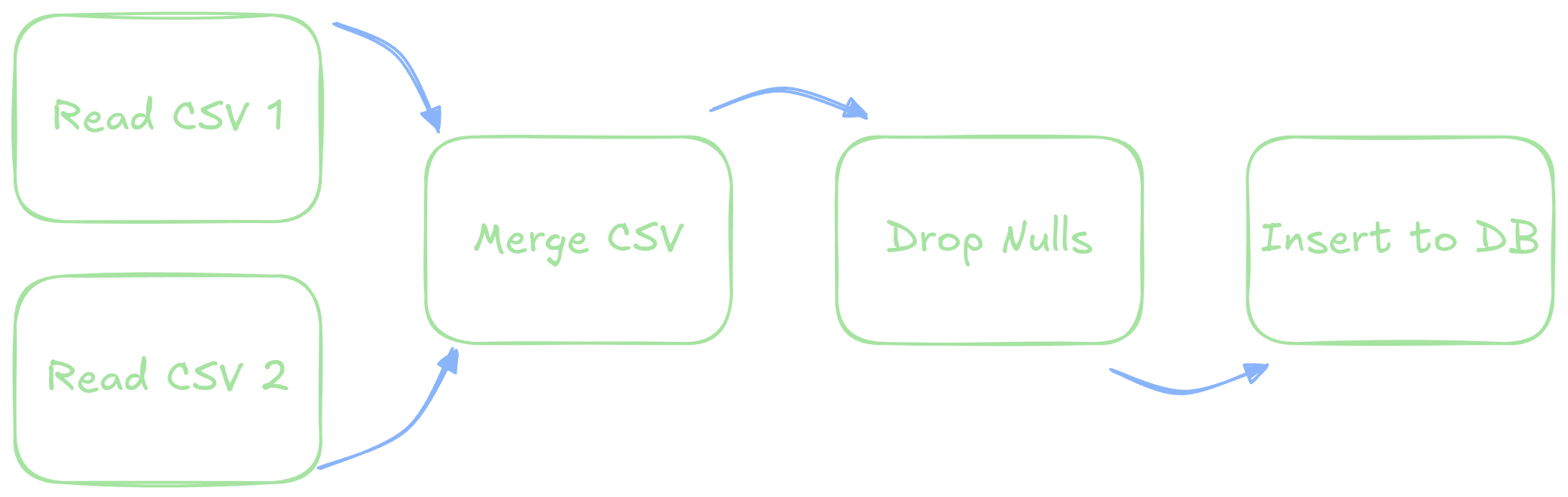
DAG Priorities
- Each DAG thus has:
- A clear ordering: what should happen next contingent on what has happened so far
- Task independence: if two tasks do not depend on one another and both are available, both can run simultaneously
- Scheduling: we can schedule when the DAG should run as a whole unit
- Observability: we can see exactly what is happening each step of the way
Creating a DAG
- Airflow utilizes Python to construct DAGs and run the orchestration
- There are generally two different syntaxes that are used. We’ll focus here on the more modern (and Pythonic) which goes by the name of “Taskflow”
- Taskflow uses decorators on Python functions to indicate DAGs and Tasks
- We create a DAG by defining several attributes inside the
dagdecorator:
A TaskFlow Dag
from airflow.sdk import dag
import pendulum

@dag(
  start_date = pendulum.datetime(2026, 5, 26, tz='PDT'),
  schedule = "@daily",
  catchup = False,
  tags=['demo']
)
def my_first_dag():
  |||tasks and ordering|||

my_first_dag()
DAG Properties
| Property | Description |
|---|---|
dag_id |
This is provided by the name of the function. This is what will show up in the Airflow GUI. |
schedule |
Could be a full CRON expression or a preset like
@daily |
start_date |
The date at which the DAG should begin executing on its schedule. Note that DAGS run at the end of their interval after the start date |
catchup |
Defaults to False. Indicates whether to
retroactively run missed DAG runs |
Tasks
- A task is Airflows term for one of the nodes that make up a DAG, and represents a single unit of work
- A single task should be:
- Idempotent: can be run multiple times without unwanted side
effects
- This is the #1 thing that students struggle with when writing good tasks. You should be able to execute a task multiple times and have the output be unchanged.
- Atomic: should be entirely self-contained
- Idempotent: can be run multiple times without unwanted side
effects
Task Decorators
The decorator for tasks is much simpler, though it can have optional parameters
Tasks are defined as sub-functions within the function that is the DAG
from airflow.sdk import dag, task
import pendulum

@dag(...)
def my_first_dag():

  @task()
  def clean_data():
    |||Python code to read and clean a table|||
Operators
- Airflow defines many different operators, which are basic
templates for general actions you might want to accomplish
- Think, “Run a Python function”, or “Run some SQL”, or “Run a BASH script”
- The basic taskflow syntax assumes that everything is a
“PythonOperator”
- This is a fine starting point and keeps things simpler initially
- We’ll introduce some others later (being able to easily execute SQL is a useful one)
Connecting Tasks
So far we have just defined some tasks in a DAG, but we haven’t specified how they are connected!
Within the DAG function, you need to call the task functions
You specify ordering with
>>. So if you had two tasks:@dag(...) def my_dag(): @task def task1(): ||| Something happens ||| @task def task2(): ||| Something else happens ||| task1() >> task2()
Order vs I/O
- Note that this just specifies execution order, it
says nothing about if data created by
task1should be utilized intask2 - If you need data from one task in the next task, you can actually do that with Taskflow, and it will create the dependencies automatically for you
- Keep the returned things small! Don’t try to pass a 500MB table between tasks!
@dag(...)
def my_dag():
  @task
  def task1():
    return |||something|||

  @task
  def task2(x):
    ||| Do something with x|||

  out = task1()
  task2(out)
Understanding DAG Context
- Whenever Airflow runs a DAG, it has a host of internal variables and parameters that it is keeping track of, called the context
- You can access the variables within your tasks, and it can be extremely useful for setting up potential backfills
- Two main ways to access:
- Pass in the special context variable as a parameter to a
@taskfunction - Pass in a keyword-arguments parameter to your task function. I
usually use
**context. Or import fromairflow.sdkand useget_current_context()
- Pass in the special context variable as a parameter to a
@dag(...)
def my_dag():
  @task
  def task1(**context):
    date_str = context['ds']
    |||Use the date string|||
@dag(...)
def my_dag():
@task
def task1():
context = get_current_context()
date_str = context['ds']
|||Do something with the date string|||Common Context Variables
| Variable Name | Type | Meaning / Use Case |
|---|---|---|
ds |
str |
The logical execution date in YYYY-MM-DD
format. Used for templating filenames, partitioned data, etc. |
ds_nodash |
str |
Same as ds but without dashes. Often
used in file names. |
logical_date |
datetime |
Python datetime object of the logical
run date. Preferred when you need a datetime
type. |
data_interval_start |
datetime |
Start of the data interval (inclusive). Use this for windowed data processing. |
data_interval_end |
datetime |
End of the data interval (exclusive). Pairs with
data_interval_start. |
prev_execution_date |
datetime or None |
Logical date of the previous run, if available. Useful for delta-based logic. |
next_execution_date |
datetime or None |
Logical date of the next run (planned). |
dag_run.conf |
dict |
Dictionary of parameters passed when manually triggering a DAG. |
Break!
Airflow Connections
Connections
- Often, Airflows provided operators might need to interact with an outside resource
- Outside resources are often shared across multiple tasks or DAGs
- Makes sense to define all the details in a central location, and then refer to those details from within the tasks that need them
- You can find a location to set these up under the Admin → Connections option to the left in the Airflow UI
Creating a Connection
- When you create a new connection, you need to give it a name, and
choose a type
- Airflow has been around a while: there are a lot of types of connections it can easily attach to!
- Once choosing a connection, it will prompt you for the standard
fields of information to fill out
- These are the usual suspects for something like a database
- For connecting to S3 storage, we’ll talk more in a moment
- Some connection strategies will likely require an API or access key in leiu of login information
- Once configured, you need to simply save the connection, and then you are set to use it in any task you write!
Connecting to S3
- To connect to an S3 instance you should:
Choose
awsas your connection type (even if you aren’t actually using AWS)You are going to need your Access Key ID and Secret Access Key. Those have been provided to each group and should be saved somewhere in your documentation
Additionally, you need to set up some extra fields in the provided JSON:
{
  "endpoint_url": "http://lake.advde:9000",
  "region_name": "us-east-1",
  "addressing_style": "path"
}
Accessing RustFS
- You can access RustFS (from within the internal network) at
lake.advde:9001- Note that this will require setting up another LocalForward in your SSH config
- Each group has had their own connection info sent to them
- Upon logging in, you will have access to a single S3 “bucket”
- You can use this to monitor files that you are adding to the bucket (or delete some if you mess something up)
Bucket Names
One thing that isn’t saved in the S3 connection is which bucket you want to connect to
- Imagine buckets like database tables. Generally you might have access to many on a single server
Advisable to add the bucket name as a Variable in Airflow
Admin → Variables and then “Add Variable”
- Give it a name and then paste in the bucket name as the value
You can access within your Python tasks using
Variable.get({name})from airflow.sdk import Variable bucket_name = Variable.get("s3_bucket")
Accessing Databases
Using a Database Connection
- Initially lets focus just on accessing data from a Database
- Two likely approaches:
- Through Pandas, with something like
pd.read_sql()- Airflow actually has an easier alternative to this with
PostgresHook
- Airflow actually has an easier alternative to this with
- Through DuckDB, with the
ATTACHmethod
- Through Pandas, with something like
Getting a Pandas Dataframe
The easiest method here is to use the
PostgresHookfunction- You pass in the connection id for the connection you created
from airflow.providers.postgres.hooks.postgres import PostgresHook
hook = PostgresHook(postgres_conn_id=|||your conn name|||)
Then can use it to retrieve a dataframe from a query:
df = hook.get_df(
  sql = "SELECT * FROM mytable",
  df_type="pandas"
  )
Getting Data in DuckDB
There is not a built-in hook for DuckDB, so we need to extract the parameters from the connection into something we can use, namely a URI string
I provide the utility function
get_postgres_uri_from_connthat you can use to do thisfrom utils import get_postgres_uri_from_conn uri = get_postgres_uri_from_conn(|||your conn name|||)Then you use that to attach the Postgres database as we saw earlier, at which point you can run SQL on it as you see fit.
Accessing S3 Buckets
The new ObjectStoragePath
Recent versions have introduced the
ObjectStoragePathobject to attempt to streamline the process of taking S3 credentials from a connection and using them directly in your tasksCreate the object, providing the bucket and target file, as well as the connection id
from airflow.io.path import ObjectStoragePath

target = ObjectStoragePath(
    "s3://bucket_name/filename.parquet",
    conn_id=|||your conn name|||
)
In Pandas
Reading parquet into a dataframe:
with target.open('rb') as f:
  df = pd.read_parquet(f)
Writing parquet from a dataframe
with target.open("wb") as f:
  df.to_parquet(f)
DuckDB Secrets
ObjectStoragePathisn’t quite there with full DuckDB support (it only supports read operations)Instead, we’ll create and run the S3 secret directly
To create this from a given connection id, you can import
gen_duckdb_s3_secret_from_connfrom theutilslibrary I supplycon = duckdb.connect() s3_secret = gen_duckdb_s3_secret_from_conn(|||conn name|||) con.execute(s3_secret)
Reading and Writing Ducks
Then we can read in data:
con.execute(
  "CREATE TABLE my_tab AS SELECT * FROM 's3://bucket_name/filename'"
)
Or write data
con.execute(
  f"COPY my_tab TO 's3://bucket_name/filename' (FORMAT parquet)"
)
Project Beginnings
Making the Connection
- Information for connecting to the VM has been sent out to all groups
- This includes:
- The domain of the jump host
- Your user name (on both the jump host and your vm)
- The internal domain of your group’s vm
- All group members share an account (but you can still have multiple members logged in simultaneously)
The Initial Lay of the Land
- If you can connect, you will notice several folders in your home
directory:
airflow,warehouse, anddocumentation - Each will eventually have a
docker-compose.ymlfile within it - Currently, just the documentation is already set up
- This documentation is already being hosted to website that you can
access (with the proper tunnel) at port 8000
- Much you can worry about later, but it does have a “VM Tools” page where I explained the core tools that are installed on each VM for your use
Airflow Installation
- While the installation procedure for getting Airflow is significantly simplified by Docker Compose, there are still several steps to follow
- Follow the guide here
closely to ensure everything goes well
- Note that you only need one installation of Airflow on your group’s VM!
- Once installed and running, you can access the interface on port
8080
- The default credentials have
airflowfor both the user and password, which is fine
- The default credentials have
Introducing the Project
The Theme
- All the data sources you will be working with this semester will be simulating the metro system in the city of Prague
- Starting out, this will largely focus around metro lines and riders entering and exiting at various stops
- As the semester progresses, it will grow to include:
- Fare information for different riders
- Station details and daily flow patterns
- Graph DB models of how stations and lines are connected
- GPS events and sensor alerts of trains traveling on the tracks
- You will be responsible for synthesizing this all into your data lake and data warehouse in order to build dashboards to deliver on specific business decisions/interests
Starting Data
- Initially, your data source will just be a transactional Postgres database
- In it are tables for:
- Stations
- Routes
- What stations are on what routes
- Passengers
- Tap ins/outs
- This data will be updated every 15 minutes
- We are focusing on batch processing this semester, so you will be working largely with daily snapshots
This week
- The data should become active on Wednesday or Thursday
- At that point, you should endeavour to have the following done by
next week:
- Airflow up and running
- A DAG written that writes a copy of the database data to parquet
file(s) each day
- One parquet file or multiple? Up to you.
- If you can have that achieved by next week, you’ll be in a great spot!